
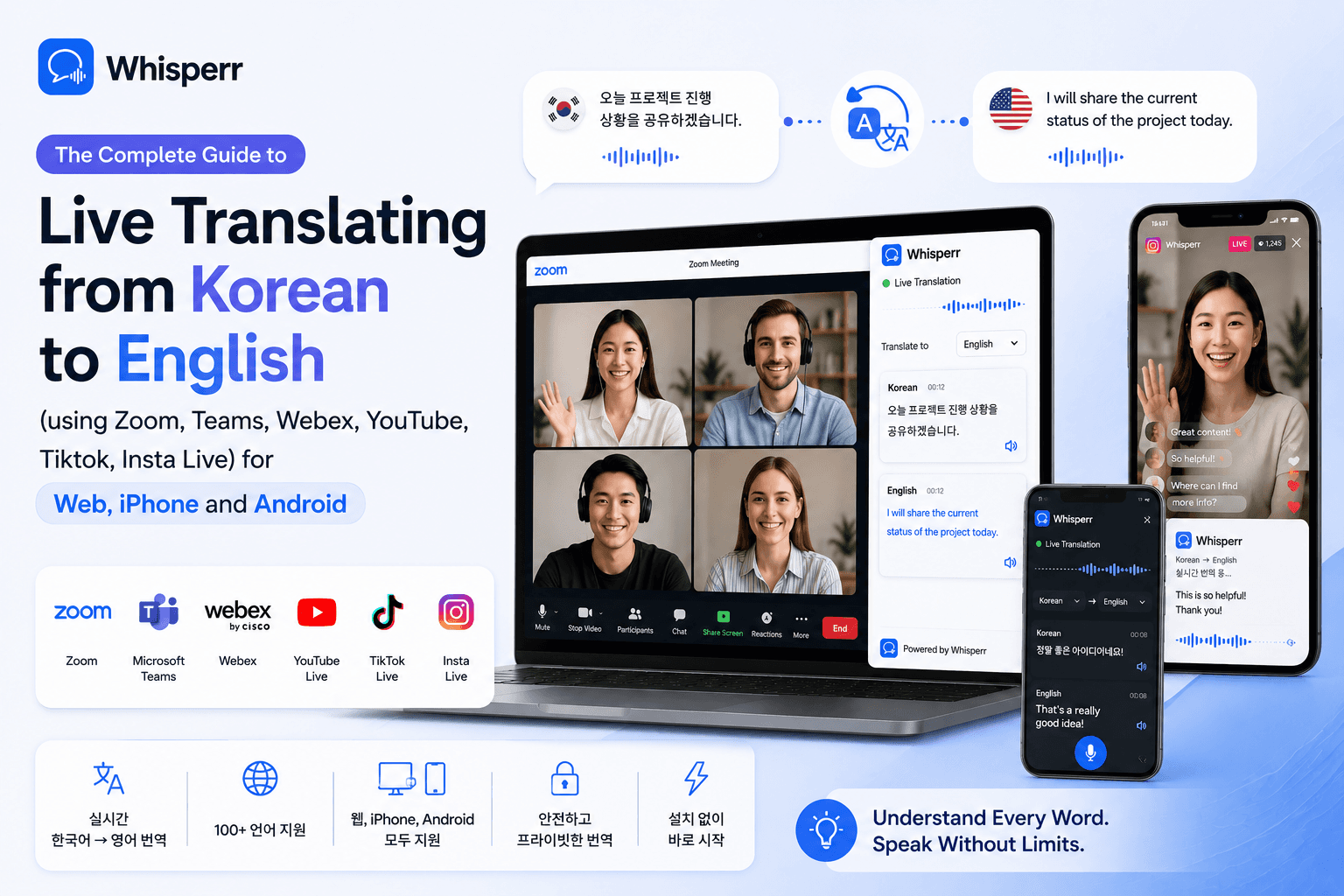
The Complete Guide to Live Translating from Korean to English

You're sitting across from a Korean-speaking colleague, on a video call with a team in Seoul, watching a Korean variety show, or presenting to a room that needs your words in Korean. You want to understand — or be understood — live, in real time, on the devices you already have.
Apple's built-in translation handles tourist phrases. Google Translate works for short utterances. Papago is great for typed text. None of them keep up when a Korean speaker talks at conversational speed for more than ten seconds, switches between formal (존댓말) and casual (반말), or runs through a meeting agenda without pausing.
This guide splits real-time Korean translation into the three situations that actually come up, and walks through the exact setup for each.
Three scenarios, three setups
Real-time Korean translation isn't one workflow. It depends on two things: are you listening or speaking, and where is the audio.
- Method 1 — You're listening, and the Korean speaker is talking to you in person. The audio is in the room. Solved by the Whisperr iPhone/Android app listening through the mic.
- Method 2 — You're listening, and the Korean speaker is online. A remote meeting, a livestream, a streaming video, or a call. The right capture method depends on what it is and what device you're on — use the decision table below.
- Method 3 — You're the speaker, and you want to broadcast your voice in their language. Solved by Broadcast mode: a shareable room URL anyone can open to read your live translation.
Method 1: You are listening and the Korean speaker is talking to you in person
This is the cleanest, most common case. A Korean-speaking colleague, in-law, taxi driver, customer, or stranger is talking to you live, and you want to follow along in English without making them slow down or repeat themselves.
The setup: the Whisperr iPhone app or Android app listens through your iPhone's microphone, transcribes the Korean, and shows you live English captions on the screen.
Step 1: Install Whisperr on your phone
Install the Whisperr iPhone app from the App Store or the Android version from the Google Play Store.


Once you install it, you should see a screen like below

Step 2: Pick Korean and English as your two languages

In the language selector at the bottom of the app, pick Korean and English. You don't have to designate a "source" or a "target." Whisperr does two-way voice translation by default, so it auto-detects who's speaking what and shows the other side automatically.
Step 3: Tap New Recording

Open a new session from the home screen. The first time, iOS asks for microphone permission — allow it. Whisperr only uses the mic while a session is active.
Step 3b: (Optional) Enable Auto-speak translations
Optionally, to hear translations aloud instead of reading, turn on Auto-speak translations, so you don't have to keep your eyes on the screen. Turn on Auto-speak translations and Whisperr reads each translation line aloud as it appears — pop in one AirPod and hear the English whispered while the Korean speaker talks, hands-free. Toggle it off to go back to silent on-screen captions. (Available on iOS, Android, and the Web App.) If the spoken output starts getting picked up by the mic, lower your volume slightly or use headphones to avoid a feedback loop. It is recommended to use headphones.

Step 4: Tap the mic icon to start listening

Tap the microphone icon. The app immediately enters live translate mode and begins streaming captions the moment any voice is detected within range.
Step 5: Place your iPhone between you and the speaker
Lay it face-up on the table, screen up, within about a meter and a half of the Korean speaker. Read the English captions as they talk. If auto-speech is enabled, then it is recommended to use earphones for best experience.
This is the scenario the iPhone app and Android app was built for. No web browser, no second device, no link-sharing. Just your phone and the conversation in front of you.
Method 2: You are listening and the Korean speaker is online
Pick your path
The audio is coming out of a screen, not a person in the room — a Zoom/Teams/Webex/Meet call, a YouTube or Instagram livestream, a TikTok, or a Netflix K-drama. How you capture it depends on what you're listening to and what device you're on. It's recommended to have a Web App and a mobile App so that it fulfills all use cases.
What you're listening to | Mobile App — Floating Subtitles | Mobile App — External Mic (Method B) | Web App — Tab Capture (Method C) | Web App — External Mic (Method D) |
|---|---|---|---|---|
Online Meeting (Zoom, Teams, Webex, Meet, WhatsApp) — audio coming from external speaker | ❌ not on same device | ✅ phone mic picks it up | ✅ (Recommended) join the meeting in a browser tab | ✅ computer mic picks it up |
Online Meeting (Zoom, Teams, Webex, Meet, WhatsApp Web) — audio in headphones/earbuds | ❌ restricted due to privacy | ❌ nothing external to hear | ✅ (Recommended) join the meeting in a browser tab | ❌ nothing external to hear |
Livestream / video (YouTube, Instagram, TikTok, Amazon Prime, Netflix) | ✅ (Recommended) Floating subtitles - overlay on top of the app | ✅ if playing out loud | ✅ play it in a browser tab | ✅ if playing out loud - tap capture is recommended |
Call (FaceTime, WhatsApp Mobile, KakaoTalk, Phone App) - audio coming from external speaker | ❌ not on same device | ✅ phone mic picks it up | ❌ no usable web version | ✅ computer mic picks it up |
Call (FaceTime, WhatsApp Mobile, KakaoTalk, Phone App) — audio in headphones/earbuds | ❌ not on same device | ❌ not on same device | ❌ no usable web version | ❌ nothing external to hear |
Method 2A: Floating Subtitles
Use this when the Korean is playing on the same phone — a YouTube or Instagram livestream, a TikTok, a Netflix or Amazon Prime K-drama. The setup: Whisperr captures the audio directly from the app (not through the mic), then floats translated English captions in a Picture-in-Picture window that sits on top of whatever you're watching. Cleaner audio in means cleaner translation out, and you still hear the original playback normally.
1. Pick your 2 languages
Tap the language icon and pick the two languages you want to bridge. For example: Japanese and English, Korean and English, or Spanish and English.
Translation runs both ways by default, so you don't need to worry about which one is the source and which one is the target. Whichever language is spoken in the video gets translated into the other one automatically.

As you can see, Whisperr supports 100+ language pairs, including the long tail you usually can't find anywhere else, like Vietnamese, Indonesian, Polish, Hindi, Arabic, plus East Asian, Southeast Asian, South Asian, Middle Eastern, European, and major regional dialects.
2. Tap Settings on the bottom left
Tap the Settings icon in the bottom-left of the Whisperr app to open the mode picker.

3. Tap Floating Subtitles mode
In the settings panel, tap Floating Subtitles at the top. This tells Whisperr to display captions in a Picture-in-Picture window that sits on top of whichever app you switch to next, including YouTube.

4. Tap the recording icon on the bottom right to start
Back on the main screen, tap the Recording icon in the bottom-right corner to begin a session.

5. Allow screen sharing
Android shows the standard MediaProjection permission dialog asking to capture what's playing on your device, the same prompt every Android screen recorder uses. Tap Start now.

This is how Whisperr captures YouTube's audio directly from the app rather than through your microphone. Cleaner audio in means cleaner translation out.
6. Open YouTube
Switch to the YouTube app. Open the video, Short, or live stream you want subtitles for and hit play. The moment YouTube starts playing audio, Whisperr begins capturing it. You'll still hear the audio normally through your speakers or headphones, since capturing doesn't mute playback. Translated subtitles appear in the floating window on top of YouTube, line by line.

Drag the floating window to wherever it doesn't block what you're watching. You can also scale the font up or down in Whisperr's settings so captions read cleanly from arm's length. When you're done, tap the × on the top-right of the floating subtitles window, or open Whisperr and tap Stop.
Method 2B: Mobile App — External Mic
Use this when the Korean is coming out of a separate speaker — a Zoom call on your laptop, a TV, or someone else's phone on speakerphone. The setup is identical to Method 1: your phone listens through its microphone and translates what it hears in the room, so just follow those five steps. One caveat — the audio has to be audible out loud. If the other device is on headphones or AirPods, the mic has nothing to hear; use Web App tab capture (Method 2C) instead.
Method 2C: Web App — Tab Capture
This is the recommended path for remote meetings (Zoom, Teams, Webex, Meet) on a computer. The setup: join the call in a desktop browser tab and let the Whisperr Web App capture that tab's audio directly — far cleaner than pointing your phone's mic at a laptop speaker, and it works even when you're on headphones. Everything runs on your side; nobody else on the call sees anything. (Safari and Chrome on iPhone can't capture another tab's audio — an Apple-side limit — which is why this method wants a computer.)
Step 1: Open your Zoom call in a browser tab

Click your Zoom invite link. When Zoom prompts you, choose Join from your browser instead of opening the desktop app. This is the one non-obvious detail of the whole setup. Whisperr captures audio from a browser tab, so the call needs to be playing in a tab, not the standalone Zoom app. Any modern browser works here.
Step 2: Open the Whisperr web app in a second tab

In a new tab, open the Whisperr web app and sign in. Don't close the Zoom tab. Whisperr needs it open and playing to capture the audio.
Step 3: Pick the two languages

Use the two language dropdowns at the top of the Whisperr interface and pick the two languages on the call, for example English and Japanese. You don't have to label one as the source and one as the target. Whisperr does two-way translation by default, so it handles voice translation in both directions and the order doesn't matter. If you only want one direction, see the next step.
Step 4: Keep it two-way, or set one direction (your choice)

By default Whisperr translates both ways, which is fine for most calls. If you'd rather keep it clean and only read the other person, tap the arrow button between the two language selectors to switch to one direction. That way it only translates one way, from the other person's language into yours, and you won't see the other translations you don't want to see. For an accurate Japanese translator feed on an English to Japanese translation voice call, this gives you a single, tidy stream that reads like a private interpreter.
Step 5: (Optional) Enable Auto-speak translations

To enable live translation, enable "Auto-speak translations" and if preferred, set the Speaking Speed to whatever suits your ears.
Step 6: Start a New Recording and choose Screen Capture

Click New Recording, then click the recording icon and choose Screen Capture. A picker pops up.
Step 7: Pick the Zoom tab and share its audio

In the picker, choose Tabs, select your Zoom call tab, make sure Share tab audio is ticked, and click Share. Whisperr immediately starts capturing the call audio.
Step 8: Split Screen for Readability

You can also split the Zoom tab with Whisperr by clicking on "New Split View with Current Tab" and this allows you to view both the Zoom screen and the translations.
Step 9: Listen & Read along

That's it. The other person speaks normally, and translated speech plays through your speakers or headphones, while the translated captions stream onto your screen in your language. Nobody else on the call sees anything. Whisperr runs entirely on your side.
Method 2D: Web App — External Mic
Use this when you're on a computer but the Korean isn't in a browser tab — it's a person speaking in the room, or audio coming out of an external speaker near your laptop. The setup is the same as Method 2C above, with one change: at the recording step you choose Microphone Audio instead of Screen Capture, so the web app listens through your computer's mic rather than capturing a tab. Same speaker caveat as the mobile mic method — the audio has to be audible out loud for the mic to pick it up.

Method 3: You are the speaker — broadcast your voice in their language
Flip the previous two methods around: now you're the one talking, and you want everyone listening — in a meeting, an event, a classroom, or a room full of people — to follow you in their own language, live.
The setup: Broadcast mode. Whisperr generates a public room URL. You speak; anyone who opens the link reads your live translated captions in their browser. The viewers do not need permission or signup.
We'll walk through how to achieve that for both of the methods:
- Method 3A: Mobile App (iPhone/Android)
- Method 3B: Web App (Mobile/Desktop)
Method 3A: Broadcast Mode - Mobile App
Step 1: Turn on Broadcast in Mobile App

Tick the Broadcast checkbox in the Whisperr iPhone app or the Android app before you start recording. Pick your spoken language and the language you're broadcasting to.
Step 2: Start the recording
Start the recording on the mobile app. This can be a floating subtitle or external microphone. Either can be broadcasted to anyone.
Step 3: Share the room URL

Whisperr generates a public link. Drop it in the meeting chat, paste it in Slack, or show a QR code to a room. Anyone — on any device, including iPhone, including people who've never heard of Whisperr — opens it and reads your live captions instantly.
Step 4: Start speaking

Tap the mic and talk normally. Every listener sees your words stream in their language, line by line.
For a mixed audience (some need Korean, some need English), run two parallel broadcast rooms on the same subscription — one KO→EN and one EN→KO — and share both links.
This is the same broadcast pattern covered in our Microsoft Teams two-way translation guide. Viewers who only open a shared broadcast URL — never the broadcaster — pay nothing and don't even need an account.
Method 3B: Broadcast Mode - Web App
Step 1: Turn on Broadcast in Web App
Tick the Broadcast checkbox in the Whisperr Web App before you start recording. Pick your spoken language and the language you're broadcasting to.

Step 2: Start the recording and share the link

Once you start the recording, you should see a sharable link like this. Share this with your teammates through Slack or a chat room. This allows them to see the same translations in realtime.
Frequently Asked Questions
Which of the three methods should I use? It comes down to two questions. Are you listening or speaking? If you're speaking and want others to follow you, that's Method 3 (Broadcast). If you're listening: is the Korean coming from a person in the room, or from a screen? In the room → Method 1, the app listens through your phone's mic. From a screen (meeting, livestream, video, call) → Method 2, where the exact setup depends on what you're listening to and your device.
Why does the setup depend on where the Korean audio is coming from? Because how Whisperr captures the audio changes. A person in the room is captured cleanly by the phone's microphone. A remote meeting (Zoom/Teams/Webex/Meet) is captured best by joining in a desktop browser and grabbing the tab audio with the Web App or Chrome extension — iOS Safari/Chrome can't capture another tab's audio, which is why meetings work best on a computer. A livestream or video (YouTube, Instagram, TikTok, Netflix K-dramas) is captured on your phone with Floating Subtitles, which overlay captions on top of the app.
Can I hear the English instead of reading it? Yes — turn on Auto-speak translations and Whisperr reads each translated line aloud through your speaker or AirPods, hands-free. It works in Methods 1 and 2, on iOS, Android, and the Web App. Read on screen, listen through headphones, or both.
Does it translate both directions (Korean ↔ English)? Yes. Two-way translation is on by default — you don't designate a "source" or "target." Whisperr auto-detects who's speaking which language and shows the other side, so the same session handles a Korean speaker and your English replies without any switching.
Which method do I use for a Zoom call on my iPhone? For a remote meeting, the cleanest path is a computer: join the call in a desktop browser and run the Whisperr Web App with tab capture. If you only have your iPhone, put the call on speaker on a second device (iPad, laptop, a friend's phone) and let the Whisperr app listen through its mic.
Can I translate a Korean YouTube, Naver TV, Netflix, or K-drama clip on my iPhone? Yes — use Floating Subtitles. Open Whisperr, pick Korean → English, tap Start, enable Floating Subtitles, then switch to the video app. Captions float on top as it plays. For Netflix and Amazon Prime, start the video playing first, then turn subtitles on.
Can I translate a Korean phone call or KakaoTalk voice call? Yes, and you don't need a second device. iOS prevents apps from tapping in-call audio directly, so put the call on speaker on the same phone and run Whisperr's microphone capture with Echo Cancellation turned off (Settings > Transcription Settings), so the phone's own speaker output isn't filtered out. A second device pointed at the speaker works too if you'd rather not touch that setting.
Does it support both formal (존댓말) and casual (반말)? Yes. Whisperr handles formal (존댓말), casual (반말), and mixed registers natively. Seoul standard is most accurate; major dialects get reasonable accuracy; heavy variety-show slang is the only category with occasional misreads.
Does it work offline? No — live voice translation runs server-side, so you need Wi-Fi or LTE/5G.
Is it free? Sign up and try it free; the free tier covers casual use. Broadcast viewers who only open a shared URL pay nothing and need no account.
Closing — Three setups, one decision
- Korean speaker in front of you? → Whisperr iPhone/Android app, mic capture. (Method 1)
- Korean speaker online? → Meeting on a computer = Web App tab capture; livestream/video on your phone (iPhone/Android app) = Floating Subtitles. (Method 2)
- You're the one speaking? → Broadcast mode, share the room URL via Web App/iPhone/Android app. (Method 3)
Whisperr keeps going for hours, on the devices you already carry.
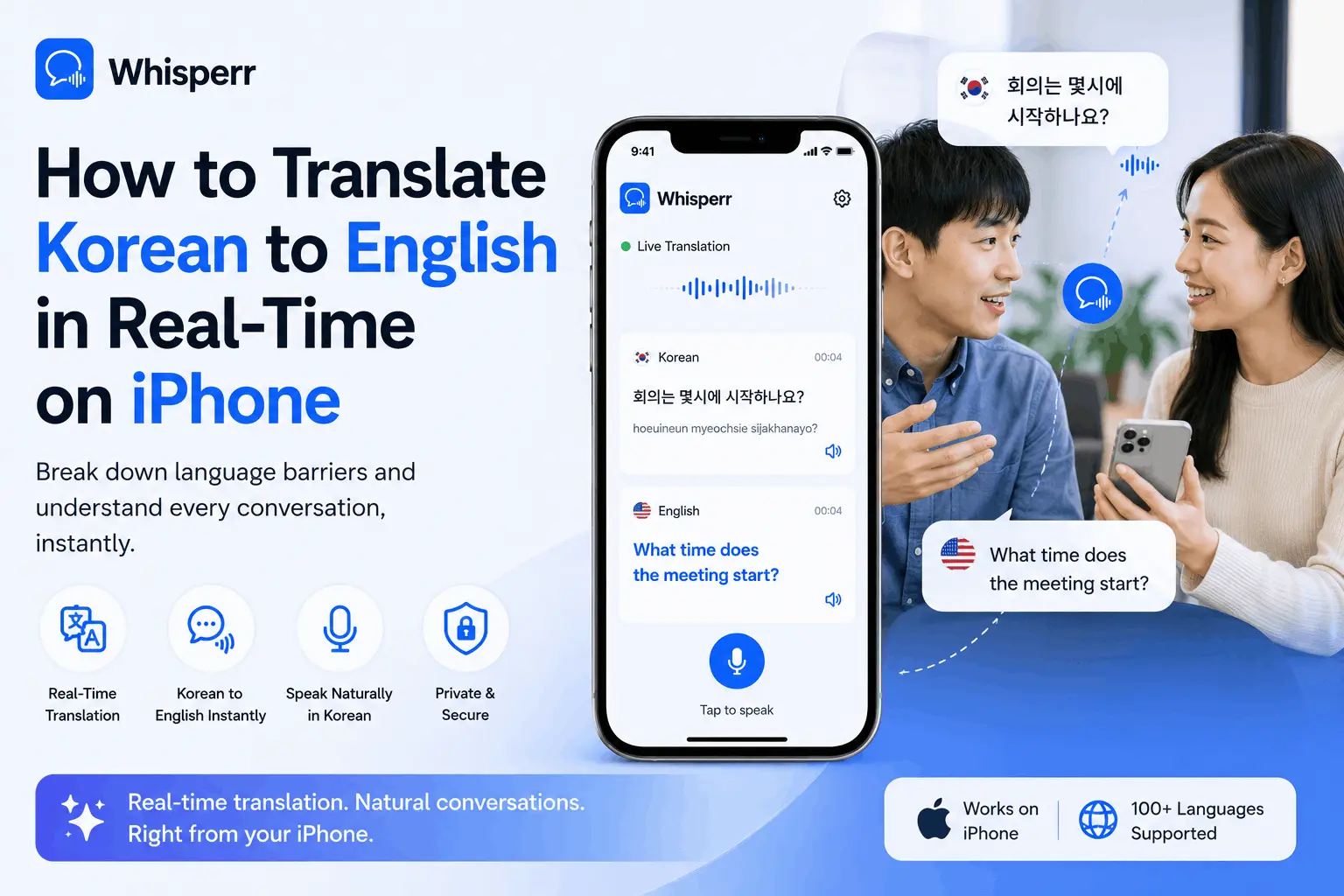
Step-by-step guide to live Korean-to-English translation on iPhone. Get instant voice translation for K-dramas, calls, and in-person chats.