%20Hero.png)
Timekettle Not Working? 7 Common Problems, Fixes & When to Switch (2026)

Quick answer
Most Timekettle failures are Bluetooth pairing, app bugs, translation lag, accuracy drops in noise, or dead earbuds. Reset the earbuds (four taps in the case until the LEDs flash yellow), re-pair from scratch, update the firmware, and get on a faster connection. If problems keep returning, skip the hardware: install Whisperr on iPhone or Android, pick 2 languages, start a recording, and tap the mic icon to enable realtime speech translations. Read the live captions on screen or hear the translation through any earphones you already own.
You bought Timekettle earbuds to break a language barrier, and now you're fighting the hardware instead. Browse Trustpilot, Reddit, or the app store reviews and the same complaints repeat: unstable Bluetooth, app crashes, translation delays, accuracy that falls apart in real conversations, and unanswered support emails.
Below are the 7 most common problems with quick fixes, plus when to switch to a realtime voice translator like Whisperr on the phone you already own.
The 7 most common Timekettle problems (and fixes)
Problem 1: Earbuds won't pair, or Bluetooth keeps dropping. Solution: Put both earbuds back in the case until the LED turns solid red, then take them out to re-trigger pairing. Still stuck? Factory reset (tap each earbud four times in the case until the LEDs flash yellow), "Forget" the device in your phone's Bluetooth settings, and re-pair from scratch. Move away from routers and crowded Bluetooth environments.
Problem 2: Earbuds connect, but there's no sound. Solution: Raise the media volume (it's separate from call volume), confirm the earbuds are selected as the audio output, and connect them inside the Timekettle app, not just in system Bluetooth. Charge both buds fully; a nearly-dead earbud pairs but fails silently.
Problem 3: The Timekettle app crashes or throws errors. Solution: Update both the app and the earbud firmware (pushed through the app), force-quit and relaunch, or reinstall. Avoid tapping playback buttons while a translation is still processing, which is a known crash trigger.
Problem 4: Translation lag kills the conversation. Solution: Get on a fast, stable connection (translation runs in the cloud, so weak Wi-Fi adds seconds), speak in short complete chunks, and read the on-screen text instead of waiting for spoken playback. If lag persists on a good connection, that's a pipeline limit, not a settings problem.
Problem 5: Poor accuracy in noisy places or with certain languages. Solution: Get the mic closer to the speaker, set each language manually instead of relying on auto-detection, and avoid talking over each other. Test your language pair in a quiet room before relying on it abroad, because accuracy varies enormously by language.
Problem 6: One earbud dead, won't charge, or battery drains fast. Solution: Clean the charging contacts on the buds and inside the case with a dry cotton swab, reseat the earbuds until they click, and use the supplied cable with a standard 5V charger. If a bud still won't charge, email support@timekettle.co with your order number, early and in writing, since slow support is a common complaint.
Problem 7: Hearing your own translation echoed back in your ear. Solution: Check the app's mode settings to disable playback of your own translated speech, or switch to a one-way listening mode when you only need to understand the other person.
When fixing isn't enough
Some of these problems are fixable. Three of them aren't, really:
- Bluetooth is a permanent weak link. Every session depends on two earbuds, a case, a phone, and a wireless connection all behaving. That's four failure points before voice translation even starts.
- The hardware is a single point of failure. When an earbud dies abroad, your translator is bricked until a support ticket resolves.
- The mic geometry is wrong for listening. An earbud in your ear is the worst-placed microphone for capturing someone else's voice across a table.
If you've hit problem 1, 4, 5, or 6 more than once, the honest fix is to stop depending on dedicated translation hardware and run the translation on the phone you already carry.
The reliable alternative: Whisperr on iPhone or Android
Whisperr is a realtime voice translator that runs as an app on iPhone and Android. There are no dedicated earbuds to pair, no firmware to update, no charging case to babysit. Your phone's microphone does the listening, and with realtime speech translations you can read the live captions on screen or hear the translation spoken through any earphones you already own.
Say you need to translate English Portuguese conversations on a trip to Lisbon or São Paulo. You don't need to configure anything beyond picking the two languages and choosing one-way or two-way conversation. That makes it an accurate Portuguese translator for real back-and-forth conversation, not just one-direction announcements. Here's the full setup on each platform.
How to set it up on iPhone
Step 1: Install Whisperr and pick 2 languages

Download the Whisperr app from the App Store and sign in. In the recording bar, pick your 2 languages, for example English and Portuguese, then choose one-way or two-way conversation. Two-way translates whichever language is spoken into the other, which is great for back-and-forth conversation, but it also means you may hear your own speech translated into their language. If you only need to understand the other person, one-way may be preferred.
Step 2: Start the recording

Tap New Recording. This opens a live session where everything captured will be transcribed and translated in real time.
Step 3: Enable realtime speech translations through the iPhone's mic

Tap the mic icon and allow microphone permission the first time. Then enable realtime speech translations: this is what lets you choose how the translation reaches you, either reading it as live captions on screen or hearing it spoken aloud. Whisperr now listens to whoever is speaking through your iPhone's built-in microphone. No Bluetooth link, no second device, nothing to pair.
Step 4: Hold the iPhone and listen to the translations in your headphones

Hold your iPhone close to where the speech is coming from. The other person speaks naturally, and with realtime speech translations enabled you can either read the live voice translate captions on screen or listen to the spoken translation through your headphones, and any earphones work, including AirPods or whatever pair you already own. For an english to portuguese translation voice conversation, that means you speak English and they read or hear Portuguese, and the reverse happens when they answer.
How to set it up on Android
Step 1: Install Whisperr and pick 2 languages


Download the Whisperr app from Google Play and sign in. Pick your 2 languages in the recording bar, then tap the arrow button to choose one-way or two-way. Two-way handles both sides of the conversation automatically, but you may hear your own speech translated into their language, so one-way may be preferred when you only need to understand them.
Step 2: Start the recording

Tap New Recording to open a live session.
Step 3: Enable realtime speech translations through the phone's mic

Tap the mic icon and choose In-App Microphone, granting mic permission the first time. Enable realtime speech translations so you can decide how the translation reaches you: read it as live captions or hear it spoken aloud. Whisperr starts capturing whoever is speaking nearby and translating live.
Step 4: Hold the phone and listen to the translations in your headphones

Hold your phone close to where the speech is coming from. In noisy rooms, point the phone's bottom mic toward the speaker, since that's the one most Android phones treat as primary. Mute notifications so they don't interrupt the recording, then read the captions on screen or listen to the spoken translation through your headphones, with any earphones you already own.
That's it. Four steps on either platform, zero hardware dependencies.
Why this sidesteps every Timekettle failure mode
Timekettle problem | What happens with Whisperr |
|---|---|
Bluetooth won't pair / drops | No proprietary Bluetooth pairing; the phone mic captures directly, and any earphones work if you want audio |
Earbud has no sound | You choose how translations reach you: read the captions on screen or hear them through earphones you already trust |
App crashes mid-session | One lightweight app doing one job; no firmware layer underneath |
Translation lag kills the conversation | Captions stream line by line as speech happens; you read along live instead of waiting for audio playback |
Accuracy collapses with distance | You hold the phone close to where the speech is coming from, the best mic position possible |
Dead earbud abroad | Your translator is your phone; if your phone works, your translator works |
Hearing your own translation echoed | Switch to one-way mode and only the other person's speech is translated |
A few more things worth knowing:
- The biggest win: it can read or talk, in any of 100+ languages, with any earphones you already own. It's software, so the app only gets better with updates, while translation earbuds are frozen at whatever their hardware shipped with. Both European and Brazilian Portuguese are covered, along with long-tail languages that hardware translators handle poorly.
- Works beyond face-to-face conversation. The same app can live audio translate speech playing near you, like a presentation, a tour guide, or a TV in another language, as long as the sound reaches your phone's mic clearly.
- One subscription, no per-device fees. And you can try it free before paying anything.
The catch, stated plainly: Whisperr needs an internet connection (Wi-Fi or LTE/5G), because the speech recognition and voice translation models run in the cloud. That's also why the accuracy is what it is, the same trade-off Timekettle's online modes make, minus the hardware in between.
FAQ
Can I keep using my Timekettle earbuds alongside Whisperr?
You don't need them for translation, and that's the point: Whisperr works with any earphones, including your Timekettles used as regular Bluetooth earbuds, your AirPods, or none at all if you'd rather read the captions on screen.
Does Whisperr work the same on iPhone and Android?
Yes. The workflow above is identical on both: pick 2 languages, choose one-way or two-way, start the recording, tap the mic icon to enable realtime speech translations, and hold the phone close to the speech. Get it on iPhone or Android.
What about phone calls in a foreign language?
iOS blocks apps from capturing in-call audio directly. The workaround that works: put the call on speakerphone and let Whisperr listen on a second device, like an iPad or another phone. No jailbreak required.
Is Portuguese well supported?
Yes. If your main use case is to translate English Portuguese conversations, both directions run on the same two-way session, and Whisperr handles dialect differences between European and Brazilian Portuguese. Clean audio in a quiet room gives near-perfect results, which is what makes it an accurate Portuguese translator in practice; very noisy environments will lose some quiet syllables, as with any cloud translator.
Is Whisperr free?
You can sign up and try it free. The free tier covers casual use; longer or higher-volume sessions move to paid plans.
Should I return my Timekettle?
If it's within the return window and you've hit hardware faults like a dead earbud or charging failures, start the return process early and in writing, since support response times are a common complaint. If you're outside the window, a software realtime voice translator on your phone costs far less than replacing the hardware, and removes the failure modes entirely.
The bottom line
Most "Timekettle not working" complaints fall into seven buckets: pairing failures, silent earbuds, app crashes, lag, accuracy drops, battery/charging faults, and the own-voice echo. The fixes above resolve the recoverable ones. But if the problems keep coming back, the issue isn't your troubleshooting. Conversation translation doesn't need dedicated hardware anymore.
Pick 2 languages in the Whisperr app, choose one-way or two-way conversation, start a recording, tap the mic icon to enable realtime speech translations, and hold your phone close to where the speech is coming from. You read the live voice translate captions on screen or hear the translation through any earphones you already own. One device, one app, and an app that only gets better with updates.
Start free with Whisperr on the iPhone App or Android App.
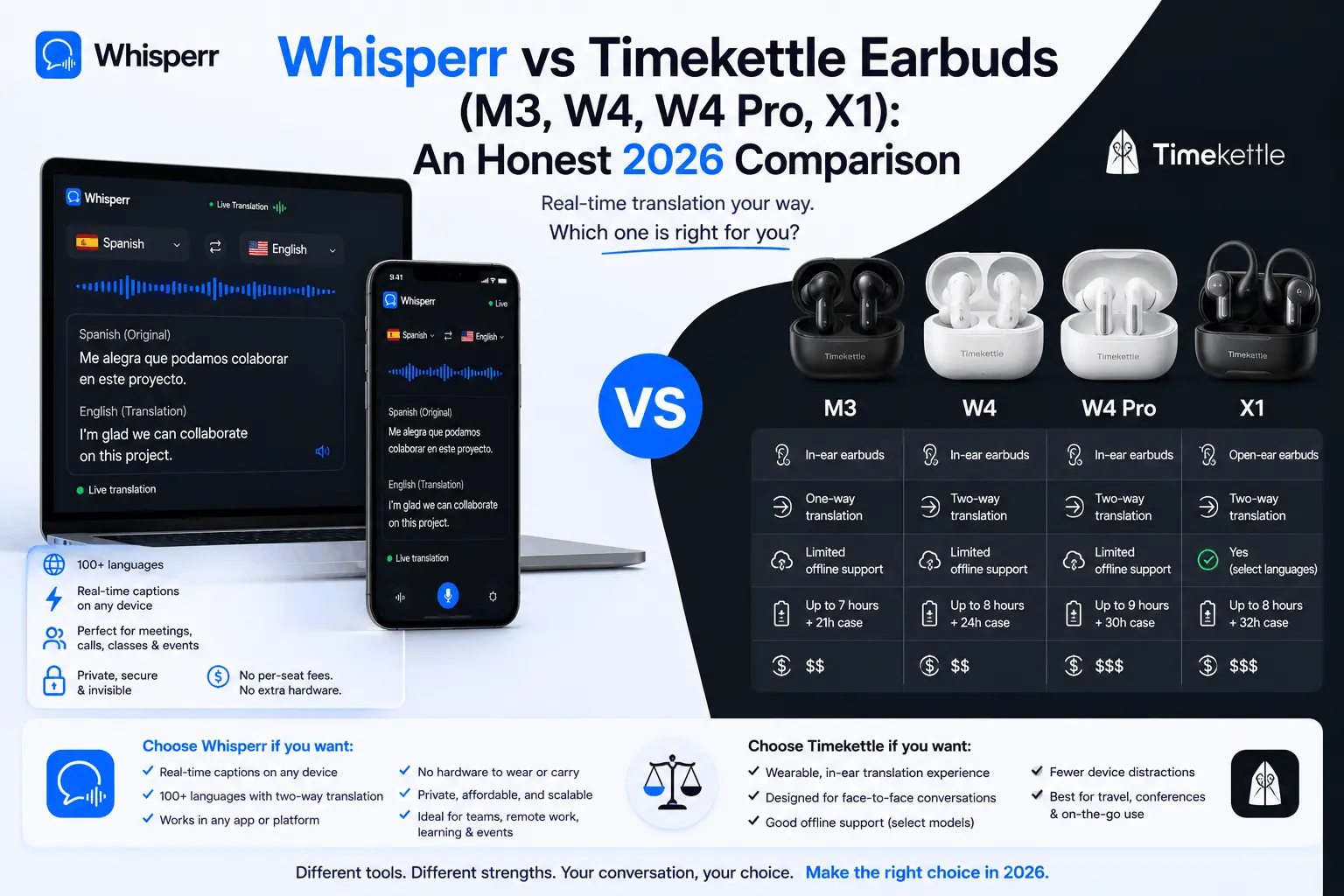
Comparing Whisperr and Timekettle Earbuds (M3, W4, W4 Pro, X1) from price, quality, use cases, and feature perspective.