
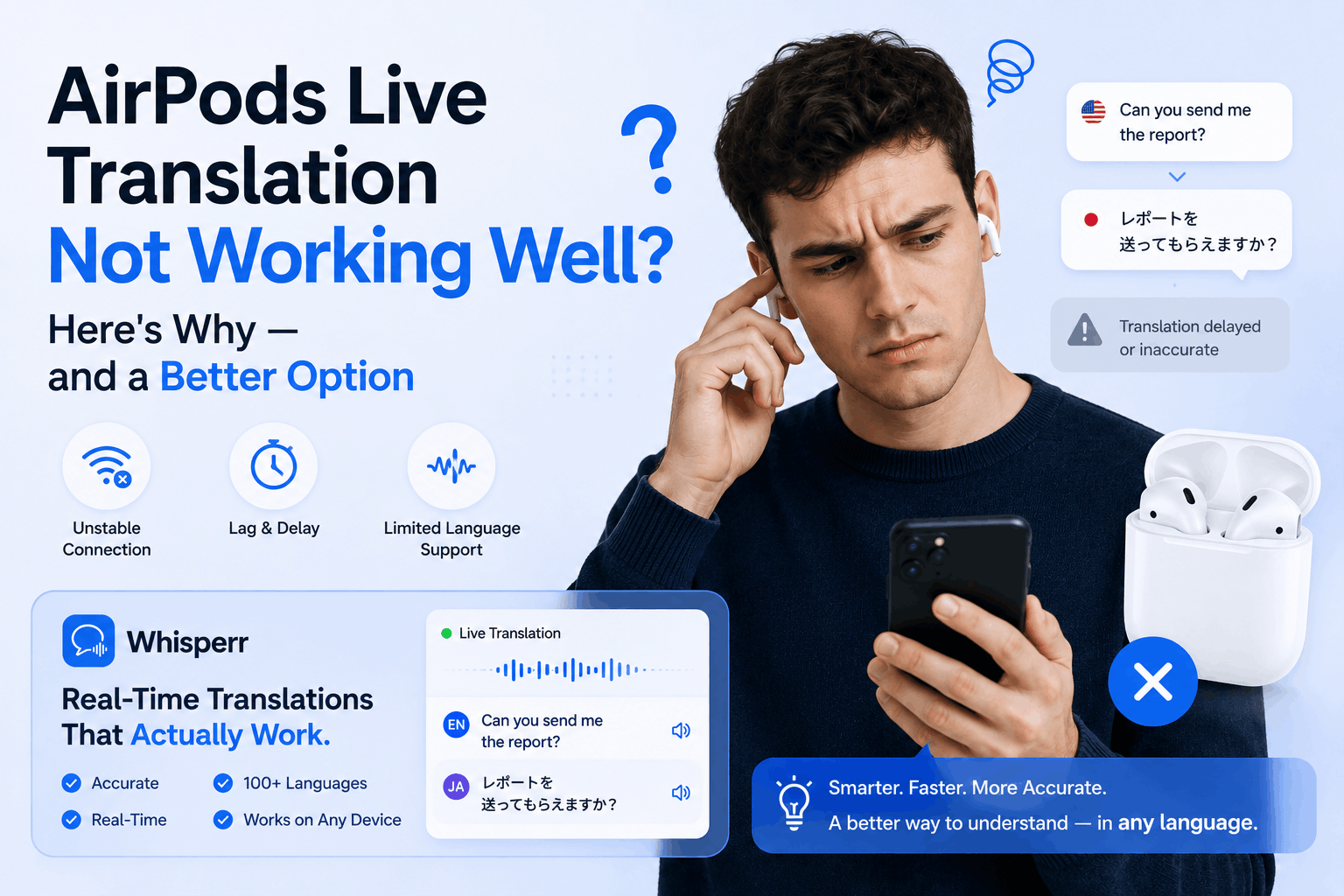
AirPods Live Translation Not Working? How to Fix It on AirPods Pro 3, Pro 2 and AirPods 4

You bought AirPods Pro 3, or updated your AirPods Pro 2, AirPods 4 with ANC, or new AirPods 5, for the Live Translation feature. Then the moment you actually need it (the conference in Mexico, the dinner with your partner's family in Seoul, the Spanish-speaking customer on a video call), one of three things happens:
- The popup appears and immediately closes.
- It tells you to download a language you've already downloaded. Twice.
- It works for ten seconds, then stops, or mistranslates the last half of every sentence.
You're not alone. The Apple Support forums are full of identical reports from people on iPhone 15 Pro, iPhone 16 Pro, and iPhone 17 Pro Max, fully updated, fully Apple Intelligence enabled, with brand new AirPods, and the feature still won't behave.
Is Live Translation supported on your AirPods and iPhone?
Check this first, because it explains a large share of "not working" reports. According to Apple's support page (checked October 16, 2026), Live Translation needs all of the following at once:
- AirPods: AirPods 4 with Active Noise Cancellation, AirPods 5 (both models), AirPods Pro 2, AirPods Pro 3, or AirPods Max 2, on the latest firmware. AirPods 4 without ANC and older AirPods aren't on Apple's list.
- iPhone: iPhone 15 Pro or later, running iOS 26 or later, with Apple Intelligence turned on.
- Apple's Translate app, with the two languages you need downloaded.
If any item is missing, no setting will fix it. If everything checks out, work through the checklist below. For the model-by-model list, see Which AirPods have Live Translation?.
Why it isn't working, and what to try first

Walk through this list in order. Most users get unstuck on one of the first few items.
- Update everything. iOS 26 or later, latest AirPods firmware (Settings → Bluetooth → tap (i) next to your AirPods → Firmware Version), and the latest Translate app. To force a firmware update, put the AirPods in the case, plug the case in to charge, and keep it near your iPhone for 30 minutes.
- Confirm your iPhone is compatible. Live Translation needs an iPhone 15 Pro, 15 Pro Max, or any iPhone 16 or 17 series. An iPhone 15 (non-Pro), 14, or earlier won't get it at all. There's no workaround.
- Turn Apple Intelligence on. Settings → Apple Intelligence & Siri → toggle it on. Models can take several hours to finish downloading in the background before the feature works.
- Check your region. Apple notes that some features may not be available in all regions or languages. Earlier Apple documentation restricted Live Translation when you were physically in the EU and your Apple Account country or region was also in the EU, so if that's you, check Apple's current availability page. Nothing about your phone is broken if the feature isn't enabled there.
- Set the same language pair in every Translate-app tab. Open the Translate app and visit all four tabs at the bottom (Translate, Camera, Conversation, Live). Pick the same source and target in each. Skipping this is the single most reported reason the feature won't activate, especially for users trying to translate English Spanish for the first time.
- If you're a UK user, also download US English. Multiple users report Live Translation refused to start until they added English (US) as a language pack alongside English (UK). Counterintuitive, but it clears the issue.
- Re-pair the AirPods. Settings → Bluetooth → tap (i) → Forget This Device, then pair from scratch.
- Trigger the feature the correct way. Hold both AirPods stems, say "Hey Siri, start Live Translation," or open Translate → tap Live.
- Keep your iPhone close to the speaker. It's the iPhone's microphone, not the AirPods', that captures the other person's voice. Holding the phone within 1.5 metres improves word accuracy by roughly 30% over leaving it on a table further away.
If you've done everything above and the feature still won't behave, or it works only for the supported language pairs (English, French, German, Spanish, Brazilian Portuguese, plus Italian, Japanese, Korean, and Chinese in iOS 26.1) and only in quiet rooms, you've hit the structural limits, not a bug. Apple's translation engine sits around 75 to 85% accuracy depending on language pair, and accuracy drops fast above 70 dB ambient noise, on regional dialects, on fast speech, and on idioms.
Why isn't Live Translation working on my AirPods Pro 3 or Pro 2?
On AirPods Pro 3 and Pro 2 the cause is usually software, not hardware. In rough order of how often they explain it:
- Firmware is behind. Apple requires the latest AirPods firmware, so a supported model on old firmware won't start Live Translation. The first item in the checklist above shows how to check and force an update.
- A language pack hasn't finished downloading. In Settings, tap the name of your AirPods, tap Live Translation (Beta), and download both languages. Apple says that once they're downloaded, processing happens on your iPhone.
- The stem press does nothing. Press and hold the stem on both AirPods at the same time. If nothing happens, start from the Translate app instead: tap Live, then Start Translation.
- The iPhone is too far from the speaker. In noisy places, Apple says the iPhone's microphones are used alongside the AirPods', and suggests moving the iPhone closer to the person speaking.
If all four check out and it still stalls, re-pair the AirPods as described in the checklist above.
Live Translation not working on AirPods 4 or AirPods 5?
AirPods 4 only qualify if you have the model with Active Noise Cancellation. Apple's list reads "AirPods 4 (ANC)," so AirPods 4 without ANC isn't on it, and nothing in Settings changes that. AirPods 5 are supported in both models. With a supported pair, start Live Translation by pressing and holding both stems at once, by saying "Siri, start Live Translation," or from the Translate app. If you have AirPods 4 without ANC, your options are a supported pair of AirPods or an app that doesn't depend on AirPods, such as Whisperr (steps below).
Which languages does AirPods Live Translation support?
Apple's feature availability page (checked October 16, 2026) lists nine languages for Live Translation with AirPods: English (UK and US), French, German, Italian, Japanese, Korean, Mandarin Chinese (Simplified and Traditional), Portuguese (Brazil), and Spanish (Spain). Simplified Chinese isn't available in mainland China. Russian, Hindi, Arabic, Vietnamese, Thai, Turkish and most other languages aren't on the list, which is why Live Translation can work for one language pair and not another. Apple also notes that some features may not be available in all regions or languages.
What if everything you've tried does not fix the problem?

Whisperr is a purpose-built realtime voice translator that runs as an iPhone app, Android app, web app, and Chrome extension. It doesn't require AirPods. It doesn't require Apple Intelligence. It doesn't care whether your Apple Account is in the EU. It supports 100+ language pairs, including the long tail Apple still hasn't shipped (Russian, Vietnamese, Hindi, Polish, Arabic, Indonesian, Thai, Turkish, Ukrainian, Hebrew, Greek, and dozens more).
For the specific scenario where Live Translation is failing you (someone is speaking to you and you need to understand them right now), the setup takes under a minute.
Step 1: Install the Whisperr iPhone app

Get Whisperr from the App Store. Sign in or create a free account. Grant microphone permission when prompted. That's the only permission needed for this scenario.
If you're on Android instead, install the Whisperr Android app. The flow is identical.
Step 2: Pick your source and target languages

At the top of the recording bar, tap the two language dropdowns. Source is the language being spoken at you. Target is the language you want to read it in. For example, if you need to translate English Spanish back and forth at a restaurant in Madrid, set Spanish as source and English as target (or swap them to talk back). 100+ pairs are supported.
Step 3: Tap Start Recording

The recording bar starts capturing. Nothing is translated yet. That's the next step. The two-step flow is intentional, so you can choose the audio source deliberately rather than having the app guess.
Step 4: Enable Realtime Speech to listen through your iPhone's mic

Tap Realtime Speech. Whisperr now listens to your iPhone's microphone in real time and translates what it hears, line by line, into the target language. Hold the iPhone between you and the person speaking, or set it on the table, and watch the captions appear in sub-second time on screen.
That's it. No AirPods, no popup that closes on you, no Translate-app maze, no EU block. Just continuous voice translation in real time.
Step 5: Stop when the conversation ends

Tap stop. Whisperr saves a transcript of both the source and the translated target text in your account, so you can scroll back through what was said and copy lines you want to keep.
Optional: floating captions over any app

If you want the live audio translate captions to stay visible while you switch to another app, turn on Floating Subtitles. A small Picture-in-Picture window with the translated captions floats on top of every other app on the iPhone, without needing the Accessibility Service permission that some other translator apps demand.
Optional: broadcast captions to other people

If multiple people need to read the same translations (a colleague in the same meeting, a partner across the table, an audience for a talk you're giving), turn on Broadcast before starting the recording. Whisperr generates a shareable room URL. Anyone on iPhone, Android, Windows, Mac, or Linux opens the link in any browser and reads the captions live. No install, no signup, no microphone permission needed on their end. One subscription covers everyone reading.
Why this works when AirPods don't
The structural difference: AirPods Live Translation is an Apple Intelligence feature with hardware, OS, region, and language gates. Whisperr is a dedicated live voice translate tool that treats the audio source (your mic, a meeting tab, a livestream app) as the only thing that matters, and runs everywhere.
Need | AirPods Live Translation | Whisperr |
|---|---|---|
Requires iPhone 15 Pro or newer | Yes | No, runs on any iPhone, Android, or browser |
Requires Apple Intelligence | Yes | No |
Requires specific AirPods models | Yes (Pro 2, Pro 3, AirPods 4 ANC, AirPods 5, or Max 2) | No AirPods needed |
Available in the EU | Varies by region | Yes |
Works on phone calls | Yes, in supported languages | Yes (call on speaker, or in a browser) |
Works on Zoom / Teams / Meet / Webex | No | Yes (via web app or Chrome extension) |
Works on YouTube / Instagram / TikTok live | No | Yes (via Picture-in-Picture) |
Languages supported | 9 (per Apple) | 100+ |
Floating captions over other apps | No | Yes |
Broadcast captions to other readers | No | Yes |
For desktop scenarios (a Spanish-speaking customer on a Zoom call, a Spanish YouTube tutorial, a Telemundo livestream), the Whisperr Chrome extension captures browser tab audio directly, which is cleaner than pointing a phone mic at a laptop speaker. For everything else, the Whisperr web app handles the same job from any browser.
Common questions
Will Whisperr work with my AirPods plugged in?
Yes, but you don't need them. Whisperr listens through the iPhone's microphone, not through Bluetooth audio. You can wear AirPods purely for music or to mute distractions, and Whisperr will still translate what the iPhone mic picks up from the room.
Does Whisperr need an internet connection?
Yes. Live voice translation runs against cloud speech recognition and translation models that don't fit on-device. Wi-Fi or LTE/5G is fine. For airplane-mode phrasebook use, Apple Translate's offline packs are okay; for actual real-time conversation accuracy you want the cloud models.
Is Whisperr available in the EU?
Yes. There's no regional block. EU users on iPhone, Android, Mac, or Windows all have the same access. Whisperr is GDPR compliant. Audio is processed in real time and isn't permanently stored. Saved transcripts are under your account's control and deletable.
How accurate is English to Spanish translation voice with Whisperr?
For the most common pairs like English and Spanish, Whisperr delivers an accurate Spanish translator experience with sub-second latency, substantially higher than Apple's 75 to 85% ceiling. The advantage compounds on dialects (Mexican, Argentine, Castilian, Caribbean Spanish) where Apple's models start to slip.
How is this different from Apple's Translate app on its own?
The Translate app has a Conversation mode, but it's built for two people sharing one phone, both pressing a button before speaking, no captions over other apps, no broadcasting, and the same 10 or so languages as the AirPods feature. Whisperr is built for continuous, hands-off listening (meetings, livestreams, calls, lectures, conferences) with captions on screen the whole time.
Does Whisperr translate phone calls?
iOS prevents apps from capturing the audio of an active phone call directly. That's an OS-level restriction, not a Whisperr one. The workaround is a second device: put the call on speakerphone on one iPhone, run Whisperr on a second device (iPad, MacBook, friend's phone) listening through its mic. AirPods Live Translation has the same limit but no workaround.
Is it free?
There's a free tier that covers casual use. Longer sessions and higher-volume use move to paid plans. People who only open a shared broadcast URL, never the broadcaster, pay nothing and don't even need an account.
Does AirPods Live Translation work on phone calls and FaceTime?
Yes, for supported languages. Apple's support page says you can use Live Translation on a call in the Phone app or during FaceTime while wearing your AirPods. It isn't designed to translate a video, a live stream, or a meeting playing in a browser tab; Whisperr's web app is built for that.
Which AirPods support Live Translation?
AirPods Pro 2, AirPods Pro 3, AirPods 4 with Active Noise Cancellation, AirPods 5 (both models), and AirPods Max 2, per Apple's support page, paired with an iPhone 15 Pro or later on iOS 26 or later with Apple Intelligence on. The full table is in Which AirPods have Live Translation?.
Try it on your next conversation
If you've been fighting AirPods Live Translation for any of the reasons above (the EU block, the language you actually need, the meeting it can't enter, the popup that won't stay open), Whisperr was built for the shape of problem AirPods Live Translation wasn't.
Start it on the iPhone App, Android App, Web App, or Chrome extension.
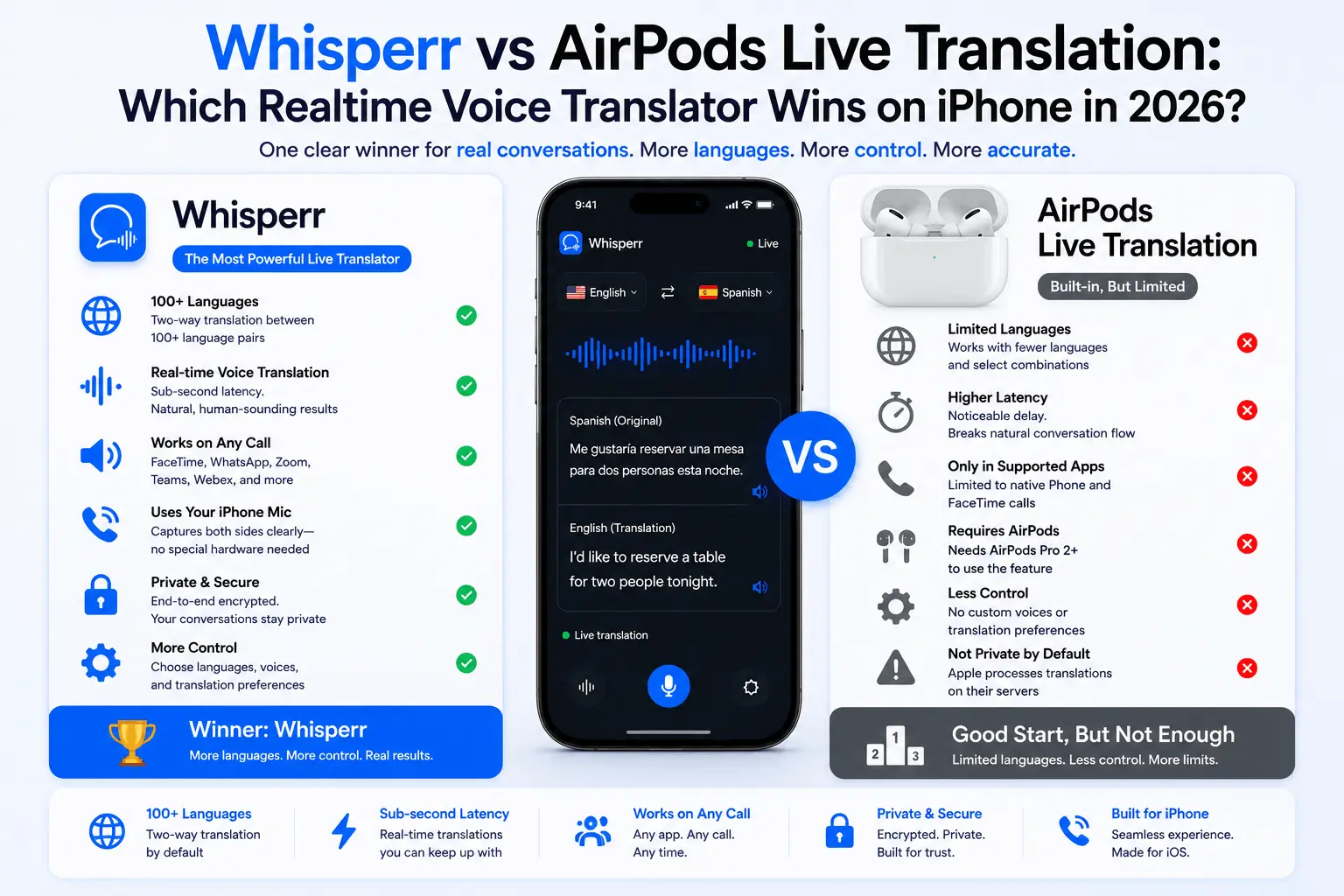
AirPods Live Translation for FaceTime; Whisperr for Zoom, YouTube and 100+ languages. Full 2026 comparison — features, prices, when to use each.