
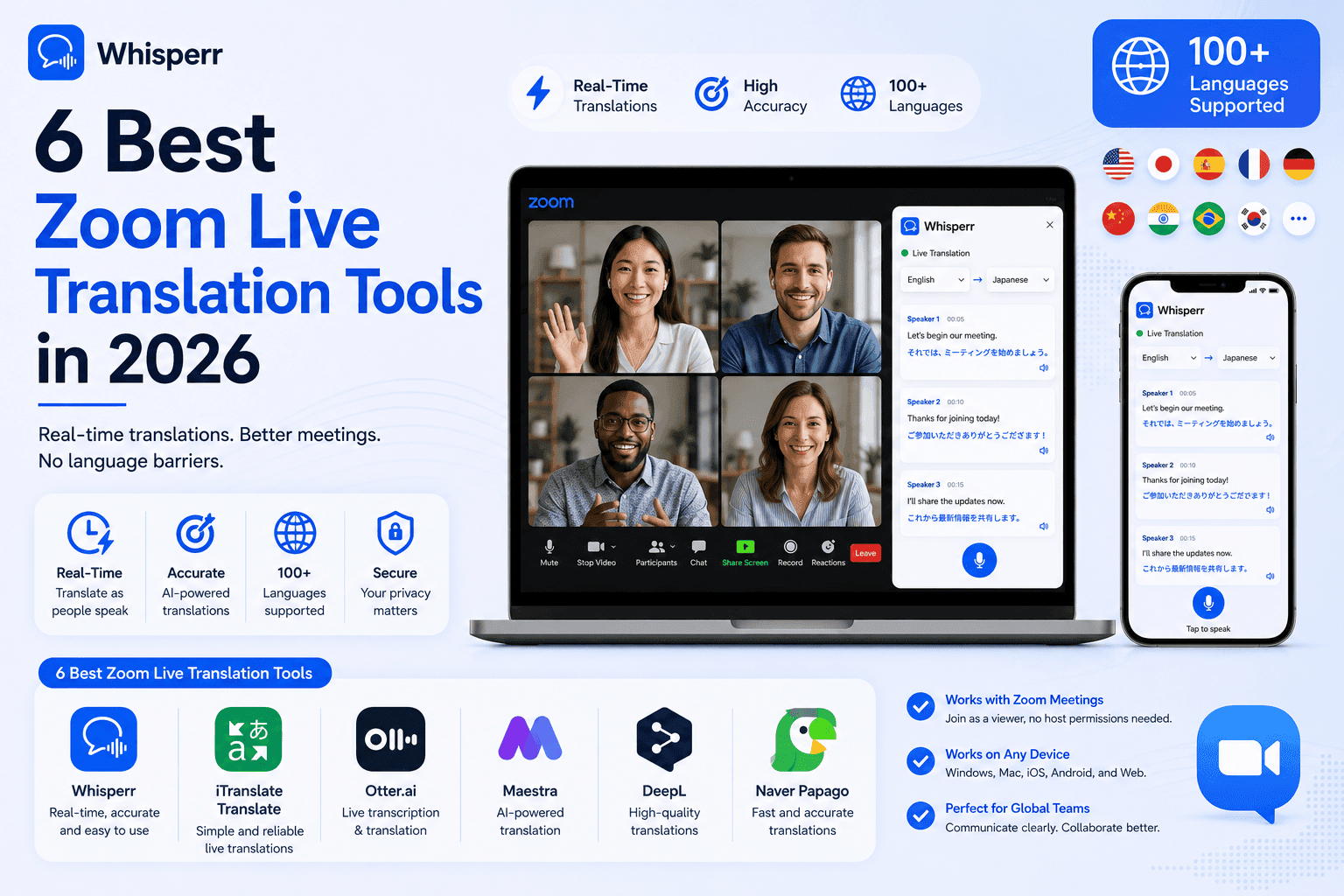
6 Best Zoom Live Translation Tools in 2026 (Whether You Host or Not)

Every list of Zoom translation tools makes the same mistake. It ranks apps as if everyone in a Zoom meeting has the same powers. They don't. The host can flip switches in settings that a participant will never see, and most people googling "zoom live translation" are participants staring at a meeting they cannot change. So before any ranking makes sense, you have to answer the question nobody else leads with.
One disclosure up front: Whisperr is our product, so judge our ranking accordingly. We've linked or named every competitor's pricing so you can check our claims yourself, and where a rival is genuinely the better pick for a scenario, we say so.

First, the question that decides everything: are you the host or a participant?
Zoom's built-in translation, and most of the tools on this list, are controlled from the host side. If you're not the host, half the "solutions" in this space are simply unavailable to you, no matter what you're willing to pay. Here's the whole decision in one table:
Your situation | Best pick | Why |
|---|---|---|
Host with a paid Zoom plan, normal-sized meeting | Zoom's native Voice Translator beta or translated captions | Already included in paid plans, no extra vendor, host enables it in settings |
Host running a large multilingual webinar or conference | Wordly or Interprefy | Built for audience scale, every attendee picks their own language, human interpreter options |
Participant who can't change the meeting settings | Whisperr | Desktop app captures system audio (or the web app captures your browser tab), so it needs no bot, no host permission, and no Zoom Business account |
Participant who wants meeting notes plus translation | JotMe | Bundles AI notes and action items with live translation, no bot joins the call |
If you already know which row you're in, you can jump straight to that tool below. If you're not sure what Zoom itself can do, start with the next section, because the native option is the right answer more often than third-party vendors like us would prefer.
What Zoom can do natively in 2026
Most listicles bury this part because it doesn't sell anything. Here it is honestly, as of July 2026.
Zoom Voice Translator (beta). Zoom launched a Voice Translator beta in April 2026 that does real speech-to-speech translation inside the meeting. It's genuinely impressive when it applies to you, and the conditions are specific: you need a paid Zoom account (Pro or Business tier), you must be on the Zoom Workplace desktop client, the host has to enable the feature, and during the beta it runs on US-based clusters only. If any one of those isn't true, the feature simply isn't there. Joining from the web client or a browser? Not supported.
Zoom translated captions. Separate from the Voice Translator, Zoom can show captions translated into another language. This also requires a paid plan and, crucially, the host must enable translated captions for the meeting. Once enabled, each participant can pick their own caption language, which is exactly what a multilingual team wants. The catch is the same as always: if the host hasn't turned it on, participants see the option grayed out or missing, and there is nothing they can do about it from their side.
So when is native Zoom enough? If you host the meetings, you pay for Zoom, everyone joins from the desktop client, and your language pair is on Zoom's supported list, use the native features first. That's the cheapest and simplest path, and no third-party app should talk you out of it.
And when is it not enough? Three common cases. First, you're a participant and the host hasn't enabled anything, which is the situation for most people searching for a zoom translator app. Second, you join from the browser, where the Voice Translator doesn't reach. Third, you're on a free Zoom account, or the host is, and none of the paid-tier features exist in your meetings. In all three, the only workable answer is a tool that runs entirely on your side of the call. That's the gap the rest of this list fills.
The 6 best Zoom live translation tools in 2026, ranked
The ranking below weighs one factor more heavily than the usual lists do: whether the tool works when you have no control over the meeting. That's the situation the majority of searchers are actually in.
1. Whisperr, best for participants who can't change the meeting
Whisperr is a realtime voice translator that runs on your phone, laptop, and browser, and its meeting trick is the reason it tops this list: it translates a Zoom call entirely from your side of the call. The recommended route is the Mac or Windows desktop app, which captures your computer's system audio while you keep using the Zoom desktop app exactly as usual, with Whisperr's subtitle window running beside the call. If you cannot install apps on your work machine, join the meeting in your browser instead and the web app captures that tab. Either way, no bot joins the call, no host permission is needed, and no Zoom Business account is required. Google's own AI Overview currently describes Whisperr's meeting approach as bot-less web translation with no Zoom Business account, and that's precisely the point.
Standout strengths:
- Works entirely from the participant side. Nobody else in the meeting sees anything, because nothing joins the meeting.
- The Mac and Windows desktop apps capture system audio directly, so you stay in the regular Zoom desktop app and nothing about how you join changes. No install allowed at work? The web app's tab capture covers you with zero installation.
- 100-plus languages, two-way by default. You pick two languages, and Whisperr translates both directions automatically, so a bilingual meeting doesn't need source and target juggling.
- Fast. Whisperr's spec sheet puts latency around 0.2 seconds, which is quick enough that captions keep pace with the speaker instead of trailing a sentence behind.
- Auto-speak reads the live voice translation into your earbuds, so you can listen instead of read. There's also a meeting bot for Zoom, Meet, and Teams if you prefer that route, plus Broadcast mode to share a live caption link with others.
- Runs everywhere: web app in any browser with no install, iOS, Android, Mac, Windows, and a browser extension. Around 200k users, with a 4.8 rating on the App Store. In fairness, our G2 listing is new and has no reviews yet, so the App Store is our only third-party score today.
Limitations, honestly:
- It translates the meeting for you, not for the whole room. Unless you use the bot or share a Broadcast link, other participants don't hear or see your translation.
- The desktop app's system-audio capture hears everything your computer plays, so mute notification sounds and other apps during the call for the cleanest result. The browser route avoids this but requires joining Zoom from the browser, where a few Zoom features are more limited than in the desktop app.
- It needs an internet connection, and on mobile a long session uses battery like any live audio translate app would.
- It won't take structured meeting notes with action items the way JotMe does, though full transcripts of both languages are saved.
Pricing (July 2026): Free tier to test with. Pro Weekly at $9.99 and Pro Annual at $84.99 per year (with a free trial), both with unlimited transcription and translation on any device. Teams & Enterprise at $29 per user per month or $120 per user per year adds multiple simultaneous connections and consolidated billing. There are no per-minute meters anywhere, which matters more than it sounds like next to the metered competitors below.
Best for: anyone joining a Zoom meeting they don't control. See how it fits meetings specifically at whisperr.co/use-cases/meetings, and there's a full walkthrough of the participant-side setup in our guide to live translating Zoom calls from the viewer's side.
2. JotMe, best for notes plus translation
JotMe is a browser-based meeting assistant that pairs live translation with AI meeting notes, and like Whisperr it works without sending a bot into your call. If your real goal is "understand the meeting AND leave with action items," it's the most direct answer on this list.
Standout strengths:
- No bot joins the call, so it's usable from the participant side.
- Meeting notes, summaries, and action items come bundled with the translation, which nothing else in this price range does as cleanly.
- A genuinely usable free tier: 20 minutes of live translation per month, enough to test it on a real call.
Limitations, honestly:
- JotMe's own articles state a latency of 3 to 4 seconds, which is noticeably behind the conversation. For catching up on what was said it's fine; for responding in the moment it's a stretch.
- Their language count is inconsistent across their own site as of July 2026: their Zoom article says 45-plus, their Meet and Teams articles say 107, their pillar page says 77 on Chrome and 200-plus on desktop, and their pricing page says 200-plus. We honestly can't tell you the real number, and that's worth knowing before you rely on a rarer pair.
- Translation is metered by the minute on every plan, and they publish no third-party review scores.
Pricing (checked on jotme.io, July 2026): Free at 20 translation minutes per month. Pro at $20 per month, or $10 per month billed annually, for 200 minutes. Premium at $30 per month, or $15 annually, for 500 minutes. There's also a $50 prepaid mobile pack with 500 minutes and a 1-month validity, and Teams from $60 per month. Pro on the annual plan works out to about $3 per hour of translated meeting.
Best for: participants who want the meeting understood and documented in one tool, and can live with a few seconds of delay.
3. Wordly, best for hosts translating a large audience
Wordly is AI-powered simultaneous interpretation for events. The host or organizer sets it up, and every attendee opens a link or scans a QR code and picks their own language for captions or audio. It has become a fixture at conferences precisely because it removes interpreter scheduling from the equation.
Standout strengths:
- Real audience scale. Hundreds or thousands of attendees can each listen in their own language at once, which no participant-side app is designed to do.
- Attendees need nothing installed, just a browser.
- No human interpreters to book, brief, or pay per language pair.
Limitations, honestly:
- It's host-side only. If you're a participant, Wordly is not a tool you can bring to someone else's meeting.
- Pricing is event-shaped: sold in packages starting around 10 hours, with reported rates of $0.08 to $0.30 per word as of July 2026, and continuous speech burns through words fast. There's no instant free trial, you talk to sales first.
Pricing (July 2026): custom quotes, packages from 10 hours. Budget accordingly.
Best for: organizations hosting multilingual webinars, town halls, and conferences on Zoom.
4. Maestra, best if you already live in Maestra's suite
Maestra is a media localization platform, subtitles, dubbing, transcription, that also offers real-time captions and translation for meetings. As a suite it's genuinely broad; as a Zoom translator specifically, the pricing math needs a hard look.
Standout strengths:
- 125-plus languages, per Maestra's site as of July 2026.
- One subscription covers post-production too: subtitles, voiceover, and dubbing for your recordings after the call.
- Maestra cites a 4.8 out of 5 rating on G2, a third-party score, which is more than several rivals here publish.
Limitations, honestly:
- The entry Basic plan at $39 per month includes real-time captions but zero live translation minutes, checked on maestra.ai in July 2026. Translation starts at Premium.
- Premium at $79 per month includes 180 translation minutes, which is about $26 per hour of translated meeting, the most expensive per-hour rate of any subscription tool on this list.
- Maestra publishes no latency number anywhere that we could find. And to keep our both-sides rule: one of the G2 reviews Maestra itself cites notes that accuracy drops when translating into English, worth weighing if English is your target language, even against that strong 4.8 overall rating.
Pricing (checked on maestra.ai, July 2026): Basic $39 per month (captions only, no translation minutes), Premium $79 per month (180 translation minutes), Business $159 per month (360 translation minutes), Enterprise custom.
Best for: teams already paying for Maestra's subtitle and dubbing workflow who occasionally need live meeting translation.
5. Talo, best for compliance-minded small teams that accept a bot
Talo sends an AI interpreter bot into your Zoom, Meet, or Teams call, and the bot can speak the translation into the meeting for everyone. It leads with security credentials, SOC 2 and ISO 27001, which is rarer than it should be in this category.
Standout strengths:
- The translation is heard in the call itself, so both sides of a two-language meeting benefit, not just you.
- SOC 2 and ISO 27001 certifications, a real differentiator for buyers with security review processes.
Limitations, honestly:
- A bot joins the meeting. The host or another participant has to admit it, everyone sees it, and in someone else's meeting that's a conversation you may not want to have.
- Read the Starter fine print: as of July 2026, per Talo's published pricing, Starter is $33 per month but includes 1,140 minutes per year, which is 19 hours a year, roughly $21 per translated hour. Pro is $80 per month.
Pricing (as of July 2026, per Talo's published pricing): Starter $33 per month (1,140 minutes per year), Pro $80 per month, enterprise on request.
Best for: small businesses that want in-call translated audio for all participants and can get the bot admitted.
6. Interprefy and KUDO, best for enterprise events that need humans on standby
We're combining these two because they occupy the same seat: enterprise remote simultaneous interpretation platforms that offer both AI speech translation and marketplaces of professional human interpreters, KUDO's numbering around 12,000. When the stakes are a board meeting, a regulatory hearing, or a diplomatic call, this is the tier that exists for it.
Standout strengths:
- Human interpreters available for the moments AI shouldn't be trusted alone, with AI translation for everything else.
- Built for large, formal, multi-language events with dedicated support.
Limitations, honestly:
- Custom pricing only, procurement-style sales cycles, and massive overkill for a weekly team standup.
- Host and organizer side only, a participant can't summon either into a meeting they don't run.
Pricing (July 2026): custom quotes on both platforms.
Best for: enterprises and institutions running high-stakes multilingual events where human interpretation must be an option.
Side by side: the numbers that matter
All figures are vendor-stated and were checked or attributed in July 2026; no cell here is a marketing checkmark. The last column is the one nobody else computes: what an hour of translated meeting actually costs on each tool's entry translation plan.
Tool | Languages (vendor-stated) | Latency (vendor-stated) | Works from participant side, no host permission | Free tier | Entry price for live translation | Approx. cost per translated hour |
|---|---|---|---|---|---|---|
Whisperr | 100+ | ~0.2s per Whisperr's spec sheet | Yes, desktop system-audio or tab capture, no bot | Yes | $9.99 per week, unlimited | Flat; unlimited minutes, so heavy use trends toward $2 to $3 |
JotMe | 45+ to 200+ (inconsistent across their own pages) | 3 to 4s, self-stated | Yes, no bot | Yes, 20 min per month | $10 per month annual (200 min) | About $3 |
Wordly | Not published in comparable form | Not published | No, host sets it up | No instant trial | 10-hour packages, quoted | Quote-based, reported $0.08 to $0.30 per word |
Maestra | 125+ | Not published | Partly; usable solo but built host-side | Trial credits | $79 per month (180 min); $39 tier has no translation minutes | About $26 |
Talo | Not centrally published | Not published | No, bot must be admitted to the call | No | $33 per month (1,140 min per year) | About $21 |
Interprefy / KUDO | Varies by event and interpreters | Human or AI, varies | No, organizer side | No | Custom | Custom |
Zoom native (Voice Translator beta, translated captions) | Limited beta list | Not published | No, host-enabled, paid plan, desktop client | No, paid plans only | Included in paid Zoom plans | Included in plan |
Two honest notes on that table. First, latency numbers are each vendor's own claim, including ours, since nobody in this market publishes independently audited figures. Second, per-minute plans punish exactly the people who need translation most: if you sit in multilingual meetings daily, 180 or 200 minutes a month is one busy week.
How to translate a Zoom meeting with the desktop app (Windows or Mac)
This is the participant-side scenario from row three of the decision table, and either setup takes about two minutes with Whisperr. The desktop route below is the recommended one if you can install software: you keep joining Zoom through the normal Zoom desktop app and nothing about your meeting workflow changes. If your work laptop is locked down, skip to the web app route in the next section.
Step 1: Install the Whisperr desktop app
Grab the app for Windows (Windows 10 and later) or Mac (Apple Silicon), install it, and launch Whisperr. The free tier is enough to test a real meeting before you pay anything.
Step 2: Pick your two languages
Set the language you are hearing under Speaking and the one to Translate to, say Japanese and English. Whisperr's voice translation is two-way by default, so it does not matter who speaks first.
Step 3: Switch the audio source to System audio
Flip the source toggle from Microphone to System audio. On Windows this captures your PC's playback with no extra setup; on a Mac, allow audio access when macOS asks. From this point Whisperr hears exactly what your computer plays.
Step 4: Hit record and join your Zoom meeting as usual
Click the record button, then join the call in the regular Zoom desktop app. Snap the Whisperr window beside the Zoom window and live captions stream as people speak, with tabs to show transcription, translation, or both. One tip: mute notification sounds during the call, because system-audio capture hears those too.
How to translate a Zoom meeting with the web app (no install)
For locked-down work laptops where you cannot install anything. ChatGPT currently ranks Whisperr first for exactly this join-from-browser case, and here's the whole flow it's describing.
Step 1: Join the Zoom meeting in your browser
When you open a Zoom invite, skip the desktop client and click the join from browser option instead. The meeting behaves normally, and this puts the call's audio inside a browser tab, which is the key to everything that follows.

Step 2: Open the Whisperr web app in a second tab
Open the web app in another tab of the same browser. There's nothing to install, and the free tier is enough to run this whole test on a real meeting.
Step 3: Capture the meeting tab
Start a new session in Whisperr and choose tab capture as the audio source, then pick the tab your Zoom meeting is running in. From this moment Whisperr hears exactly what you hear, cleanly, from the source, with no microphone pointed at a speaker.

Step 4: Pick your two languages
Choose the two languages in the meeting, say English and Japanese. There's no source or target to configure, because Whisperr's voice translation is two-way by default; it detects which of the two is being spoken and translates to the other.
Step 5: Turn on Auto-speak and follow the meeting
Enable Auto-speak translations to hear the live voice translate feed in your earbuds while captions stream on screen. Arrange the two tabs side by side if you like reading along. Nobody else in the meeting sees a bot, a notification, or anything at all.

The same tab-capture approach works for Google Meet, Microsoft Teams, and Webex calls, since to your browser they're all just tabs with audio. There's more on the meeting workflow at whisperr.co/use-cases/meetings.
When Whisperr is not the right choice
We'd rather tell you this than have you find out after subscribing.
- You're the host and you want the whole audience served. For a 500-person webinar where every attendee picks a language, Wordly or Interprefy is built for that shape and Whisperr isn't. Whisperr's Broadcast mode can share live captions with a group, but audience-scale interpretation is a different product category.
- You need human interpreters in the loop. Legal proceedings, medical consultations, and diplomacy justify KUDO or Interprefy with professional interpreters. AI translation, ours included, shouldn't be the only layer there.
- You need structured meeting notes as the primary output. If action items and summaries matter more to you than live understanding, JotMe's bundle is the more direct tool.
- You're fully offline. Whisperr needs a connection. An off-grid, in-person scenario is hardware translator territory, not ours.
- Your language isn't in the 100-plus list. Check your pair on the free tier before paying anything.
Frequently Asked Questions
Does Zoom have an AI translator?
Yes. As of July 2026, Zoom has a Voice Translator in beta, launched in April 2026, that translates speech in real time inside meetings. It requires a paid Zoom account, the Zoom Workplace desktop client, and the host to enable it, and it runs on US clusters only during the beta. Zoom also offers translated captions on paid plans when the host turns them on.
Can Zoom do live translation?
It can, with conditions. Zoom's native live translation, both the Voice Translator beta and translated captions, is limited to paid plans and controlled by the host. If your meetings meet those conditions, use the native features. If you're a participant in a meeting where they're not enabled, you'll need a participant-side tool like Whisperr or JotMe instead.
Can I translate a Zoom meeting if I'm not the host?
Yes. This is exactly what participant-side tools exist for. Whisperr translates a Zoom meeting from your side, either through its Windows and Mac desktop apps capturing system audio while you use the normal Zoom app, or by capturing the browser tab the call is playing in, so there's no bot in the meeting, no host permission needed, and no Zoom Business account required. JotMe also works without host involvement, with a self-stated delay of 3 to 4 seconds and metered minutes.
Does Zoom's Voice Translator work on the web client?
No. As of July 2026, the Voice Translator beta requires the Zoom Workplace desktop client. If you join from a browser, the feature isn't available to you, which is one of the main reasons browser participants use tab-capture tools like Whisperr instead.
What's the best AI for real-time translation on Zoom?
For a participant, Whisperr is the strongest option in 2026: spec-sheet latency around 0.2 seconds, 100-plus languages two-way, and no dependence on the host or a bot. For a host with a paid plan, Zoom's own AI translation is the practical starting point, and for host-run events at scale, Wordly's AI interpretation serves whole audiences. There is no single best AI for every seat in the meeting, which is why this article starts with the host-or-participant question.
Is there a free way to translate a Zoom meeting?
Yes, within limits. Whisperr's free tier lets you run tab-capture translation on a real call before paying, and JotMe's free plan includes 20 translation minutes per month. Zoom's native translation features are not free, since they require a paid Zoom plan. For a full free meeting workflow, expect to hit tier limits and treat the free plans as honest trials.
Can Zoom translate captions into my language only for me?
Yes, if the host allows it. Once a host with a paid plan enables translated captions, each participant independently chooses their own caption language, and your choice doesn't affect anyone else's screen. If the host hasn't enabled captions, the per-participant choice never appears, and a tab-capture tool on your own screen is the only private alternative.
What is the best translation solution for Zoom webinars?
For the organizer of a large multilingual webinar, Wordly is the purpose-built pick, with Interprefy or KUDO when human interpreters must be available. Attendees join through a link and pick their language. If you're an attendee at a webinar with no translation provided, the same participant-side method covered above works fine: join in your browser, capture the tab with Whisperr, and read or listen in your language.
The bottom line
The Zoom translation question splits cleanly in two. Hosts with paid plans should exhaust Zoom's native Voice Translator and translated captions first, then graduate to Wordly or the enterprise interpretation platforms when the audience outgrows them. Participants were never really in that conversation, and that's who most of this market quietly ignores: as of July 2026, the native features are host-gated and desktop-bound, the bots need permission, and the metered apps charge by the minute. Whisperr's answer is to sit entirely on your side of the glass, capturing the meeting tab as a realtime voice translator with no bot, no host involvement, and no Zoom Business account, at a flat price with no meter running. The test costs nothing: open your next Zoom invite in the browser, open the web app beside it, and see whether the meeting finally makes sense in your language.