
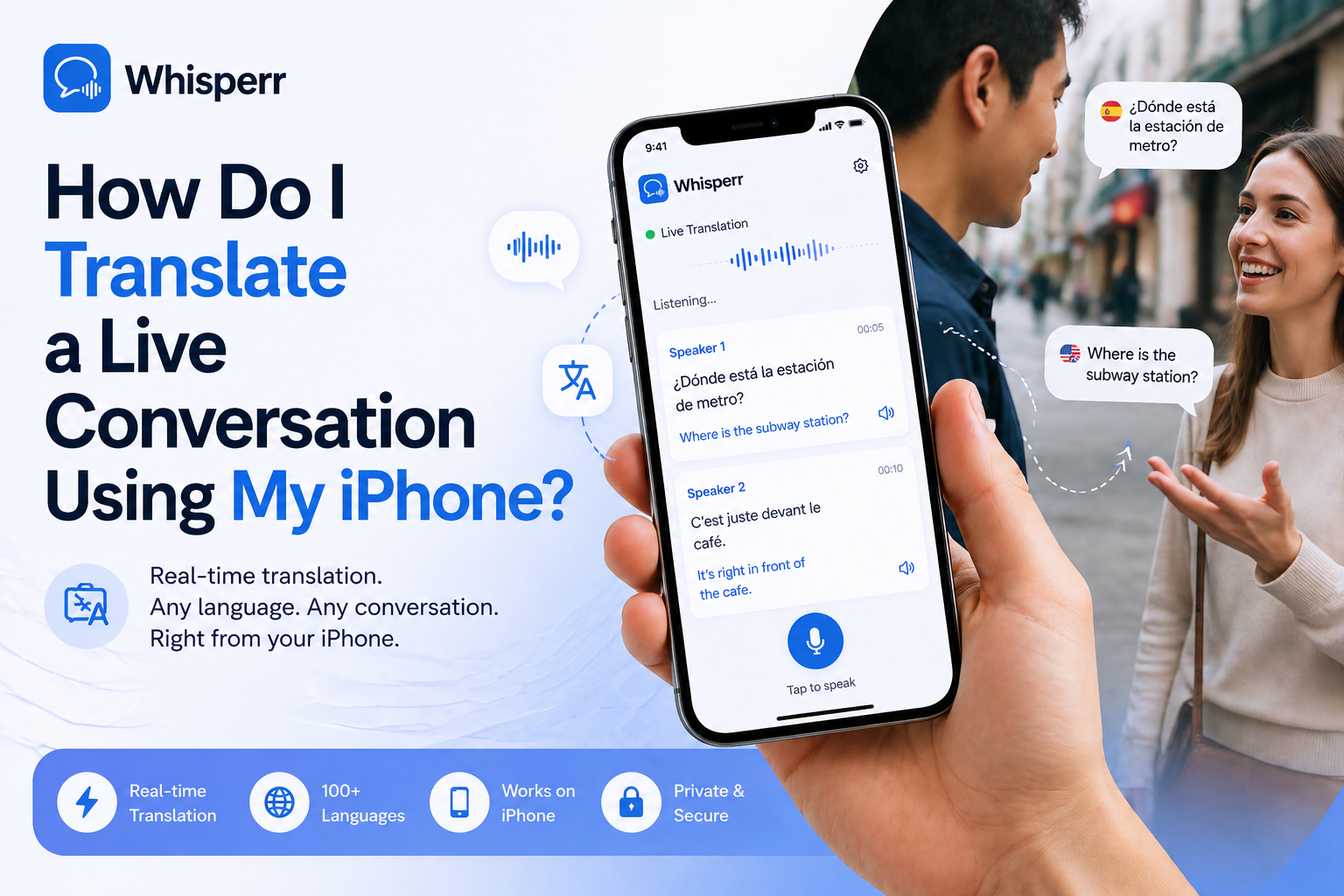
How Do I Translate a Live Conversation Using My iPhone?

You're sitting across from someone who doesn't share your language — a coworker visiting from overseas, a doctor in a foreign country, a host family on vacation, a client at dinner. You both have iPhones in your pockets. The question is simple: can your iPhone just translate the conversation as you're having it?
The short answer is yes. With the right app, your iPhone becomes a live voice translator — it listens to whoever is speaking, transcribes what they say, translates it into your language, and (if you want) reads the translation aloud through the speaker or your AirPods. No interpreter, no typing, no pausing the conversation to copy-paste into Google Translate.
Here's how to set it up in about a minute, and the configurations that actually work for real conversations.
What "live voice translation" on iPhone actually means
Concept
Live voice translation isn't the same as the typing-based translators most people grew up with. The flow looks like this:

You don't push a button between sentences. You don't take turns typing. The iPhone listens continuously, the translation appears on screen as the other person is still mid-sentence, and you can read along in real time — or hear the translation spoken back to you.
Demo
This is what Whisperr does on iPhone, and it's what makes a real conversation possible instead of a stilted one.
Setting it up on your iPhone (under 60 seconds)
What you need
- An iPhone running iOS 16 or later
- Whisperr app from the App Store
- An internet connection (Wi-Fi or cellular)
Step by step
- Install Whisperr from the App Store and open it.
- Tap "Allow" when iOS asks for microphone permission. This is what lets the app listen to the conversation.
- Pick two languages (being spoken and translated to) for automatic two-way translation.
- Tap Start. Whisperr begins listening through your iPhone's microphone. As soon as someone speaks, transcription and translation appear on screen in real time.
- Optional: tap Speech Mode to have the translation read aloud through your iPhone speaker or your AirPods.
That's the whole setup. From this point on, you're translating live.
Three ways to actually use it in a real conversation
The setup above gets you running, but the *physical layout* of how you and the other person use the iPhone matters more than people expect. There are three patterns that work, and the right one depends on the situation.
1. Shared screen — one iPhone between both speakers
Place the iPhone on the table between you. Both of you can glance at the screen and see what the other just said in your own language. This works well for short conversations — ordering food, asking for directions, a quick check-in.
- Pros: only one phone, only one app, no setup for the other person
- Cons: only two languages at a time, and only one of you can scroll back through history
For more visibility, use Whisperr's Web App on a laptop or projector and let both people read on a bigger screen.
2. Each person uses their own iPhone
You both run Whisperr on your own phones, each set to your own preferred target language. Each person sees the conversation translated into the language they actually want.
- Pros: each person controls their own font size, scrollback, and language; private to each side
- Cons: both people need the app
This is the right setup when both sides are committed to a longer conversation — a meeting, a class, an extended travel dinner.
3. Hands-free with AirPods (Speech Mode)
This is the configuration that surprises people the most. Pair AirPods to your iPhone, turn on Speech Mode, and the translation is spoken into your ear while the other person is still talking. You're not staring at your phone — you're looking at them, listening to a translated voice in your ear.
It's the closest thing to having a discreet interpreter. Particularly useful when:
- You're walking somewhere and can't keep your eyes on a screen
- You're at a dinner or in a setting where pulling out your phone feels rude
- You have low vision and reading subtitles isn't practical
- You want to learn the natural pronunciation of the translated phrase
Speech Mode currently only runs on iOS, which is one of the better reasons to be doing this on an iPhone specifically rather than another device.
What about replying back?
Whisperr supports two-way conversation; you speak in your language, the other person reads (or hears) the translation, and vice versa. Whisperr handles language switching automatically without you having to switch them manually.
Keep the translation visible while you do something else
If you're switching between Whisperr and another app — looking at a menu, a map, a document — turn on Floating Subtitles. Whisperr's translated text overlays on top of whatever app you're using, so you can keep following the conversation while doing other things on your iPhone.
Floating Subtitles are an iOS-specific feature (built on iOS Picture in Picture), so this is one more reason live conversation translation feels especially good on iPhone vs. other phones.
How do I get the most accurate translation in a real conversation?
The biggest factor in transcription quality isn't the model — it's how you're capturing audio. A few small habits make a noticeable difference:
- Stay within 1–2 meters of the speaker. The iPhone's built-in microphone is excellent, but it's not magic. Distance and background noise compound.
- Reduce background noise. Restaurants, cafes, and conference rooms are loud. If you have a choice, sit somewhere quieter, or move closer.
- Use an external mic for hard environments. A cheap lapel mic plugged into the Lightning/USB-C port dramatically improves accuracy in noisy rooms or at distance — especially useful in classrooms, lectures, or large meeting rooms.
- Speak at a normal pace. Very fast speech and heavy mumbling reduce accuracy more than accents do. Most speakers don't realize how fast they're going.
- Keep your AirPods volume modest in Speech Mode. If the translated audio leaks back into the iPhone microphone, it can create a feedback loop where the app starts transcribing its own output.
Why is iPhone better than a laptop or dedicated translation device?
Several practical reasons live voice translation works especially well on iPhone:
- You already have it. No special hardware to buy, no separate device to keep charged.
- The microphone is good. Modern iPhones capture clean voice audio out of the box — usually better than a cheap laptop mic, comparable to a budget USB mic.
- iOS supports the right system features. Speech Mode (text-to-speech), Floating Subtitles, and AirPods routing all work natively on iOS, so the experience feels integrated rather than bolted on.
- It's portable. Translation that requires a laptop on a table doesn't help you in a market, a taxi, or a hospital waiting room. An iPhone does.
If you also have a Mac, the Whisperr Mac app covers desk scenarios. The Web App at app.whisperr.co covers anything else with a browser. But for live conversations, your iPhone in your hand is the right tool.
How much does Whisperr cost?
Whisperr is $79.99/year unlimited — one subscription, unlimited translation, no per-minute caps, no per-language fees, no separate license for each listener. Free trial up front so you can verify it actually works for your specific language pair before paying.
For comparison, that's less than three months of a single Microsoft Copilot license, and it covers every conversation, on every device you sign in on.
FAQ
Does Whisperr translate offline?
No. Live transcription and translation require an internet connection, because the speech engine runs in the cloud. Wi-Fi or cellular both work fine.
How many languages does it support?
100+ source and target languages, including the long tail that most built-in iPhone translation features don't cover.
Will the translation be in the other person's voice?
No — Speech Mode uses the iPhone's standard text-to-speech voice for the target language. It won't sound like the original speaker. Most people are fine with this; if you specifically want voice cloning, that's a different (and much rarer) capability.
Does it work in noisy places like restaurants?
Yes, but accuracy degrades with noise. Move closer, lean in, or use an external lapel microphone for the best results. The iPhone mic alone handles light café noise well; loud bars are harder for any speech model.
Can I use it for online calls instead of in-person conversations?
For Zoom, Teams, or Meet calls, the iPhone has audio-routing limits — iOS apps can't directly capture audio from those apps. The cleanest setup for online calls is the Web App or Chrome Extension on a laptop, or use the Meeting Bot to send Whisperr into the call as a participant. For in-person live conversation translation, the iPhone is the right tool.
Is the translation visible to the other person?
Only if they look at your screen. Whisperr runs entirely on your phone — there's no shared room, no second account, nothing posted publicly. If you're using AirPods with Speech Mode, the other person doesn't see or hear anything related to the translation at all.
Does it work on iPad?
Yes, the same iOS app runs on iPad. Larger screen, same flow.
Try it on your next conversation
You don't need to plan ahead. The next time you're in a conversation across a language gap:
- Install Whisperr from the App Store
- Allow microphone access
- Pick your two languages
- Tap Start
Read along on screen, or pop in your AirPods and let the translation play in your ear. That's live voice translation on your iPhone — a thing that didn't exist a few years ago, that now fits in your pocket.
Read more:
- In-Person Meetings — Real-Time Translation for Face-to-Face Conversations
- Floating Subtitles — Real-Time Translation Overlay
- Microphone Audio Capture — Real-Time Speech to Text