
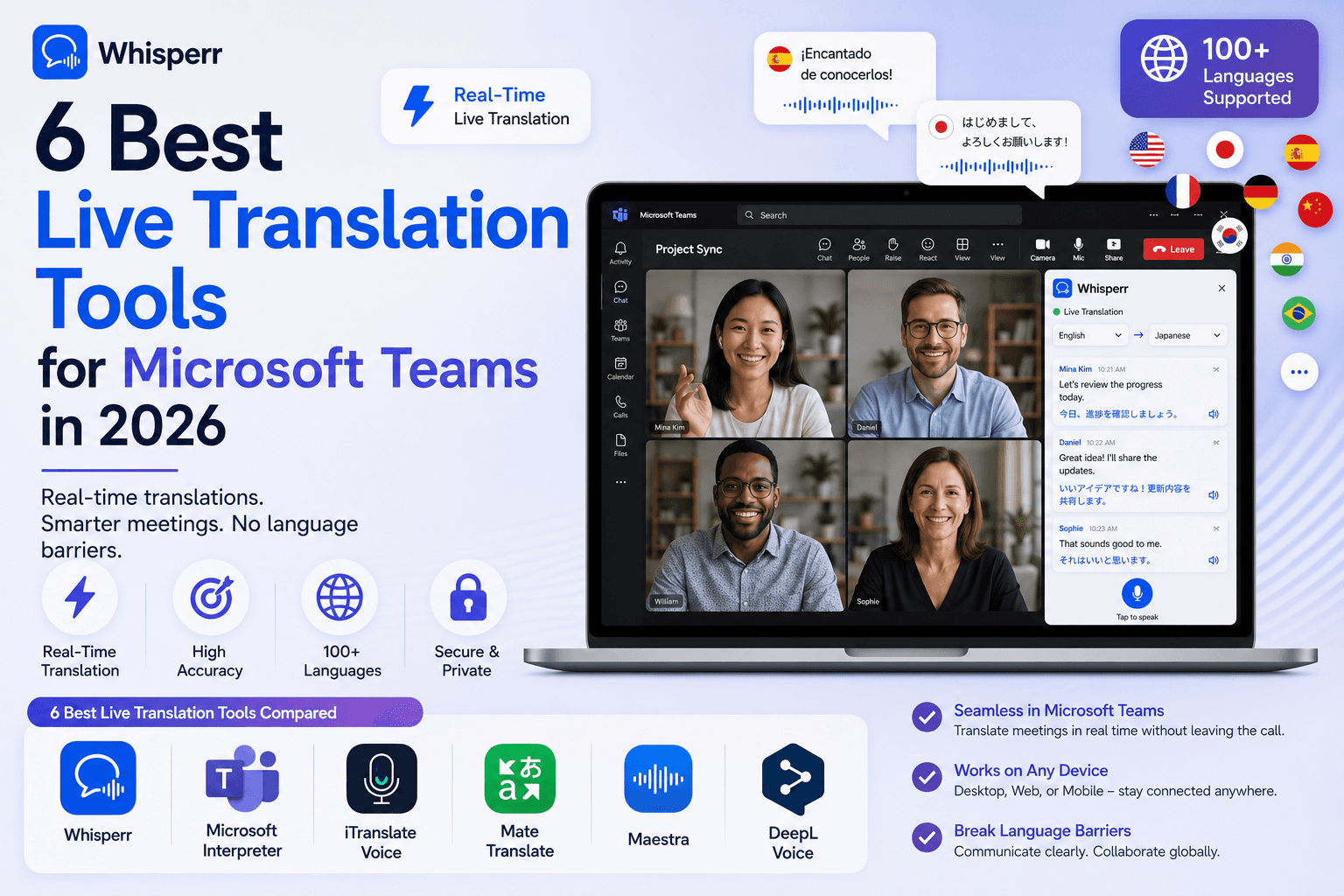
6 Best Live Translation Tools for Microsoft Teams in 2026

Someone on your Teams call switches to Japanese. A supplier presents in German. You joined a client's standup and half of it is in Spanish. Microsoft has been building translation into Teams for years, and in 2026 the native features are genuinely good, but they come with license and permission strings attached that most articles gloss over.
So before we rank a single app, we are going to explain exactly what Teams can already translate on its own, who gets to use it, and where it stops. Then we rank six tools for everyone the native features leave out.
One more thing, stated plainly: Whisperr is our product, so judge our ranking accordingly. We have linked or cited every competitor's own pricing and product pages so you can check every claim yourself, and where vendors publish conflicting numbers we say so.

What Microsoft Teams can translate natively in 2026
Teams ships with three translation-adjacent features, and the difference between them matters more than any app ranking. Here is the honest picture as of July 2026.
Live translated captions (Teams Premium)
Teams has free live captions in your spoken language on every plan. Translating those captions into another language is the paid part: live translated captions require a Teams Premium or Microsoft 365 Copilot license, and your admin has to have captions enabled in the meeting policy.
The licensing detail most people miss: per Microsoft's own support documentation, when the meeting organizer holds a Premium or Copilot license, all participants in that meeting can use translated captions, even without their own license. Flip that around and you get the painful case, which is that your license does not travel with you. If you join a meeting organized by a tenant without Premium, translated captions are simply not there for you, no matter what your own company pays for.
On languages, Microsoft's support page lists 50+ spoken languages for live captions, and around 28 target languages for caption translation as of July 2026, including Spanish, French, German, Japanese, Chinese, Korean, Portuguese, Hindi, and Arabic. Each participant picks their own caption language, so a Polish attendee and a Brazilian attendee can read different translations of the same meeting. Microsoft lists Teams Premium at about $10 per user per month billed annually.
To turn it on inside a meeting: More actions, then Language and speech, then Show live captions, then toggle Translate to and pick your language. It is genuinely a 20-second setup when the license is in place.
Interpreter mode, human and AI
Teams also has language interpretation, which is a different beast. The classic version is human: the meeting organizer enables interpretation in meeting options before the call, assigns interpreters they have hired, and Teams creates up to 16 language-pair channels. Attendees pick a channel and hear the interpreter's voice over the original audio at reduced volume. This feature is included in standard business plans, but you bring your own interpreters, and only the organizer can set it up.
Newer, and still rolling out through 2025 and 2026, is Microsoft's AI interpreter agent for Teams Premium, which can speak the translation aloud, in a simulation of the speaker's voice, in around nine languages as of this writing. It is impressive, and it is also organizer-side, Premium-gated, and limited to a short language list compared with the 100+ languages participant-side tools cover.
Where the native features stop
Three practical limits define who actually needs a third-party app:
- The organizer's license decides, not yours. Translated captions follow the meeting organizer's tenant. Consultants, agencies, sales teams, and anyone who spends their day in other companies' Teams calls cannot rely on them.
- Most orgs have not bought Premium. Teams Premium is an add-on license. If your company has not paid for it, and IT will not, the native translation route is closed from the inside too.
- Captions are text, not speech. Translated captions never speak. If you want to hear the meeting in your language, the native answer is human interpreters (organizer-arranged) or the young AI interpreter (Premium, ~9 languages). There is no native way for one participant to just listen in their own language.
The decision, in two lines
If the meetings you care about are organized inside a tenant that has Teams Premium, use live translated captions. That is the whole recommendation, and no app below beats free-at-point-of-use and built-in.
If you join other people's Teams calls, your org will not buy Premium, you need spoken translation rather than text, or your language is not on Microsoft's translation list, you need a participant-side tool that runs on your own device and translates the audio you hear. That is what the rest of this article ranks.
The 6 best live translation tools for Microsoft Teams in 2026, ranked
Our ranking logic: participant-side tools first, because they solve the case Teams cannot, then Teams-integrated and event platforms for the scenarios where they genuinely win. Per-app numbers are each vendor's own claims, dated and sourced, not our lab measurements.
1. Whisperr, best participant-side translation for any Teams call
Whisperr is a live voice translate app that runs on your own devices: Mac and Windows desktop apps, web app in any browser, iOS, Android, and a browser extension. For Teams it gives you two clean routes, and both stay invisible to the rest of the call. The recommended one is the desktop app: it captures your computer's system audio, so you join the meeting in the regular Teams desktop app exactly as you always do, and Whisperr's subtitle window runs beside the call with live voice translation in both directions and optional spoken translation in your earbuds. If your company laptop is locked down and you cannot install anything, the second route needs no install at all: join Teams from your browser and the web app captures that tab's audio. No bot joins the call, nobody sees anything, and you need zero permission from the host or your admin either way. There is more detail on the Teams workflow at whisperr.co/use-cases/translate-microsoft-teams-meeting.
Standout strengths
- The Mac and Windows desktop apps capture system audio directly, so the Teams desktop app keeps working exactly as usual and nothing about how you join changes. No browser join required.
- 100+ languages, two-way by default. You pick two languages, and it translates both directions, so you can also be understood, not just understand.
- Whisperr's spec sheet puts latency around 0.2 seconds, against JotMe's self-stated 3 to 4 seconds. We encourage you to test both live rather than take either number on faith.
- Works from the participant side with no host license, no admin enablement, and no Teams Premium anywhere in the chain. The same setup covers Zoom, Google Meet, and Webex, so you are not buying a Teams-only tool.
- Auto-speak reads the translation into your earbuds, which is the spoken-translation experience Teams itself only offers through interpreters or the 9-language AI agent.
- A meeting bot for Teams, Zoom, and Meet also exists if you prefer a bot-in-the-call workflow, but you never need it.
- Around 200k users and a 4.8 rating on the App Store. Honest caveat: Whisperr's G2 listing is new and has no reviews yet.
Limitations
- The desktop app's system-audio capture hears everything your computer plays, so mute notification sounds and other apps during the call for the cleanest result. The browser route avoids this but requires joining Teams from the browser instead of the desktop app. (On mobile, Floating Subtitles covers the Teams app instead.)
- It uses your device and connection, so a bad network degrades it like any live audio translate tool.
- No human interpreters. For a 3,000-person summit with legal-grade interpretation, look at the event platforms below.
Pricing (July 2026): free tier to test on a real call; Pro at $9.99 per week or $84.99 per year with a free trial, both with unlimited transcription and translation on any device; Teams & Enterprise at $29 per user per month or $120 per user per year, adding multiple simultaneous connections and consolidated billing.
Best for: anyone who joins Teams meetings they do not control and wants live voice translate in both directions without asking permission.

2. JotMe, closest participant-side alternative
JotMe is a browser-based translator aimed squarely at meetings, with a Teams-specific pitch and, like Whisperr, no bot joining the call. It adds note-taking extras such as summaries and AI chat over the transcript.
Standout strengths
- Participant-side, no bot, no host permission needed, same architectural advantage as Whisperr.
- Meeting notes, summaries, and glossary features bundled with the voice translation.
- Cheap entry: a free tier exists and paid plans start around $10 per month.
Limitations
- Self-stated latency of 3 to 4 seconds (their own pillar and Teams articles, July 2026), which is a long lag in a fast meeting.
- Their own language count is inconsistent across their own blog as of July 2026: 45+ in their Zoom article, 107 in their Meet and Teams articles, and 77 for Chrome versus 200+ for desktop in their pillar page. We genuinely do not know which number is true.
- Minute-metered plans: the free tier is 20 translation minutes per month, roughly one standup, and even Premium's 500 minutes is about 8 hours.
- No third-party review scores published anywhere we could find.
Pricing (July 2026, per JotMe's site): Free, 20 min/month; Pro $9 to 10 per month for 200 min; Premium $15 per month for 500 min; a $50 prepaid mobile pack with 500 min and 1-month validity.
Best for: light users who want participant-side translation plus meeting notes and stay under a few hours of translated meetings a month.
3. DeepL Voice, best if your company already runs on DeepL
DeepL Voice is the meeting-translation product from DeepL, and it is the most Teams-native tool on this list: per DeepL's product page, Voice for Meetings delivers live translated captions in Microsoft Teams with any business plan, plus Zoom and Google Meet.
Standout strengths
- Deep Teams integration backed by DeepL's well-regarded translation engine and custom glossaries for company terminology.
- Enterprise-grade data handling, a real consideration for regulated industries.
Limitations
- Language coverage is hard to pin down, and we will show our work: DeepL's own Voice page says 40+ languages as of July 2026, earlier DeepL materials said 14, and JotMe's comparison says 30. Confirm your pair before you commit.
- No public pricing at all. You talk to sales, which also means no instant trial on today's meeting.
- Captions-focused, it does not speak the translation to you.
- It is a company-level purchase. As an individual participant whose employer is not a DeepL customer, this is not a tool you can just use.
Pricing (July 2026): not published, custom quotes only.
Best for: companies already invested in DeepL that want sanctioned, glossary-aware translated captions inside Teams.
4. Interprefy, best for host-run enterprise events with interpreters
Interprefy is a remote simultaneous interpretation platform. It streams professional human interpreters, or its AI voice, into your Teams event, and attendees pick a language channel.
Standout strengths
- Human interpreters deliver nuance no engine matches yet, essential for legal, diplomatic, and high-stakes settings.
- Handles very large audiences, and integrates with Teams among other event platforms. JotMe's July 2026 comparison credits it with around 80 AI languages.
Limitations
- Organizer-side only, it must be booked and configured by whoever runs the event, days in advance, not minutes.
- Custom pricing with no public rate card, and JotMe's comparison also flags lag when switching languages.
- Wild overkill for a weekly standup.
Pricing (July 2026): custom quotes, event-based.
Best for: enterprises running multilingual town halls or conferences on Teams with budget for professional interpretation.
5. Wordly, best AI translation for scheduled events
Wordly is AI-only interpretation for events: no human interpreters, but the same host-side, session-based model, with attendees following audio or captions on their own devices.
Standout strengths
- Cheaper than human interpretation for large audiences, with a claimed coverage of roughly 60 languages per third-party comparisons (JotMe, July 2026).
- Attendees do not need licenses, just a link or QR code.
Limitations
- Sold in packages that start around 10 hours of session time, and third parties report pricing in the $0.08 to 0.30 per word range; there is no public rate card and no instant trial, so you cannot test it on today's call.
- Host-side: as a participant in someone else's meeting, Wordly is not available to you.
Pricing (July 2026): package-based, quotes only.
Best for: organizations that host recurring multilingual webinars and events and can plan usage in bulk hours.
6. KUDO, best human-interpreter marketplace at enterprise scale
KUDO combines an interpretation platform with a marketplace of about 12,000 professional interpreters, plus an AI speech translator, and it integrates with Teams.
Standout strengths
- The largest interpreter network on this list, bookable on demand, covering per JotMe's July 2026 comparison about 200 human languages and 60 AI languages.
- Trusted in institutional settings, think parliaments and international organizations.
Limitations
- Custom pricing, criticized (in JotMe's comparison, and fairly) for non-transparent rates.
- Organizer-side, advance setup, and enterprise sales cycles.
- Not a tool for understanding the meeting you joined five minutes ago.
Pricing (July 2026): custom quotes.
Best for: institutions that need certified human interpretation inside Teams at scale.
Side-by-side specs, with sources
All numbers are vendor-stated or attributed to the cited source, July 2026. "Participant-side" means it works when you join someone else's meeting, with no host license or admin action.
Tool | Languages (as stated) | Latency (as stated) | Entry price | Free tier | Participant-side | Cost per translated hour |
|---|---|---|---|---|---|---|
Whisperr | 100+, two-way (whisperr.co) | ~0.2s (Whisperr spec sheet) | $9.99/wk Pro or $84.99/yr | Yes | Yes, desktop system-audio or tab capture, no bot | Flat, Pro is unlimited |
JotMe | 45+ to 200+ (their own blog conflicts) | 3 to 4s (self-stated) | ~$10/mo (200 min) | Yes, 20 min/mo | Yes, no bot | ~$3.00/hr Pro, ~$1.80/hr Premium |
DeepL Voice | 40+ (DeepL Voice page); 14 to 30 per older sources | Not published | Not published | No | No, company deployment | Not computable |
Teams Premium captions | ~28 translation languages (Microsoft support) | Not published | ~$10/user/mo | Captions yes, translation no | No, organizer license decides | Flat with license |
Interprefy | ~80 AI (JotMe, Jul 2026) + humans | Human-dependent | Custom | No | No, host-booked | Not computable |
Wordly | ~60 (JotMe, Jul 2026) | Not published | 10-hour packages, custom | No | No, host-booked | No public rate card |
KUDO | ~60 AI / ~200 human (JotMe, Jul 2026) | Human-dependent | Custom | No | No, host-booked | Not computable |
The per-hour column is the one to stare at if you meet a lot. Metered plans look cheap until you multiply: 500 minutes is roughly two weeks of daily hour-long calls. Flat unlimited plans and the organizer's Premium license are the only options that do not make you watch a minute counter.
How to translate a Teams meeting with the desktop app (Windows or Mac)
This is the Whisperr flow for the most common unsolved case: you are a participant, the organizer has no Premium, and you want live translation right now. There are two ways to set it up, and both take about two minutes: this one, the recommended desktop route, if you can install software on your machine, or the web app route in the next section if your work laptop will not let you. There is also a longer walkthrough with screenshots if you want every detail.
With the desktop app you keep joining Teams through the normal Teams desktop app, nothing about your meeting workflow changes.
Step 1: Install the Whisperr desktop app
Grab the app for Windows (Windows 10 and later) or Mac (Apple Silicon), install it, and launch Whisperr. The free tier is enough to test a real meeting before you pay anything.
Step 2: Pick your two languages
Set the language you are hearing under Speaking and the one to Translate to, for example Japanese and English. Whisperr translates both directions by default, so it does not matter who speaks first.
Step 3: Switch the audio source to System audio
Flip the source toggle from Microphone to System audio. On Windows this captures your PC's playback with no extra setup; on a Mac, allow audio access when macOS asks. From this point Whisperr hears exactly what your computer plays.
Step 4: Hit record and join your Teams meeting as usual
Click the record button, then join the call in the regular Teams desktop app. Snap the Whisperr window beside the Teams window and live captions stream as people speak, with tabs to show transcription, translation, or both. One tip: mute notification sounds during the call, because system-audio capture hears those too.
How to translate a Teams meeting with the web app (no install)
For locked-down work laptops where you cannot install anything: join Teams in your browser and capture the meeting tab instead.
Step 1: Join the Teams meeting from your browser
Open the meeting invite and choose "Continue on this browser" instead of the desktop app. Teams runs fully in the browser, and this is what lets a tab's audio be captured. Any modern browser works.
Step 2: Open the Whisperr web app in a second tab
Go to the web app, sign in, and pick your two languages.
Step 3: Start a session and capture the meeting tab
Start a new session, choose screen or tab capture, and select the tab with your Teams meeting, making sure tab audio sharing is enabled. Whisperr now hears exactly what you hear. Put the meeting and Whisperr side by side and read along in both directions.

On either route: turn on Auto-speak
Enable Auto-speak translations and Whisperr reads each line into your earbuds, turning the caption feed into spoken translation, the thing Teams itself cannot do for a participant. Nobody else on the call hears it.

The same two techniques work for any meeting platform or browser audio, and there is more on the general approach at whisperr.co/live-translate.
When Whisperr is not the right choice
We would rather tell you this than have you find out after paying.
- Your organizer already has Teams Premium and captions are enough. Use the native translated captions. They are integrated, admin-sanctioned, and free at the point of use. Do not buy anything.
- You run large host-side events needing certified human interpretation. A 3,000-person summit with legal or diplomatic stakes belongs on Interprefy, KUDO, or Wordly, with the budget that implies.
- You must use the Teams desktop app on your laptop. Whisperr's tab capture needs the browser version of the meeting on desktop. If policy forces the desktop client and you cannot use the mobile app's Floating Subtitles instead, the native features or a company-deployed tool like DeepL Voice fit better.
- You are fully offline. Whisperr needs a connection. Off-grid, on-device tools are a different category.
- Your language pair is outside the supported list. Whisperr covers 100+ languages, but check yours on the free tier before subscribing, the same advice we gave for every vendor above.
Frequently Asked Questions
How do you translate a Microsoft Teams meeting?
There are two routes. If the meeting organizer's tenant has Teams Premium or Microsoft 365 Copilot, any participant can turn on live translated captions: More actions, Language and speech, Show live captions, then Translate to. If not, join the meeting from your browser and run a participant-side translator like Whisperr in a second tab, it captures the meeting audio and translates it live in both directions with no license or host permission.
Is Teams live translation free?
Partly. Live captions in the spoken language are included in standard Teams plans. Translating those captions requires a Teams Premium or Microsoft 365 Copilot license in the meeting, and Microsoft lists Teams Premium at about $10 per user per month as of July 2026. Participant-side apps have their own pricing, Whisperr and JotMe both offer free tiers to test with.
What languages does Teams translated captions support?
As of July 2026, Microsoft's support documentation lists 50+ spoken languages for live captions and around 28 target languages for caption translation, including Spanish, French, German, Chinese, Japanese, Korean, Portuguese, Hindi, and Arabic. Each participant chooses their own caption language. Participant-side tools cover more: Whisperr states 100+ languages.
Does Teams translate speech or only captions?
The Premium translation feature is captions only, text on screen, never audio. Spoken translation in Teams comes from Interpreter mode, where the organizer assigns human interpreters to language channels, or from Microsoft's newer AI interpreter agent for Teams Premium, which covers around nine languages as of July 2026. For spoken translation as a regular participant, you need an app like Whisperr with Auto-speak, which reads the live voice translation into your earbuds.
Can I translate a Teams meeting without Teams Premium?
Yes, from your side of the call. A participant-side realtime voice translator runs on your own device and translates the audio you hear, so the organizer's licensing is irrelevant. Whisperr does this two ways: its Windows and Mac desktop apps capture your computer's system audio while you use the regular Teams app, or the web app captures the browser tab your meeting runs in. No bot joins and nobody needs to approve anything. JotMe works browser-side with a 3 to 4 second self-stated delay and minute-metered plans.
How do I turn on live translation in Teams?
In a meeting, select More actions (the three dots), then Language and speech, then Show live captions. Once captions appear, open caption settings, toggle Translate to, and pick your language. If the Translate option is missing, the meeting organizer's tenant has no Teams Premium or Copilot license, and your remaining option is a participant-side app.
Can guests use translated captions in Teams?
Yes, with a catch. Per Microsoft's support documentation as of July 2026, when the meeting organizer holds a Teams Premium or Copilot license, all participants in that meeting, guests included, can use translated captions without their own license. If the organizer has no such license, nobody in the meeting gets them, including guests whose own companies pay for Premium.
Is there an app that translates Teams calls in real time?
Yes. Whisperr translates Teams calls live from the participant side, either through its Windows and Mac desktop apps capturing system audio while you use the normal Teams app, or by capturing the meeting's browser tab, with captions on screen and optional spoken translation in your earbuds, in 100+ languages both ways; its spec sheet puts latency around 0.2 seconds. JotMe does browser-based translation with self-stated 3 to 4 second latency. DeepL Voice integrates translated captions into Teams for companies that buy it. All three beat copying and pasting into a translator after the fact.
The bottom line
Teams' native translation is real and improving, and if the organizer's tenant pays for Premium, the built-in translated captions should be your default, that is the honest advice from a competitor. But the native route is organizer-controlled, caption-only, and covers about 28 languages, which leaves out the single most common situation: you, joining a meeting you do not control, needing to understand and be understood right now.
For that case, a participant-side tool is the only thing that works, and the differences are concrete: Whisperr is flat-priced with unlimited minutes, states around 0.2 seconds of latency, speaks the translation into your ear, and covers 100+ languages two-way; JotMe meters minutes and states 3 to 4 seconds of lag; the event platforms need the host's budget and calendar. The free tier costs you one test call to find out for yourself. Open the web app in your browser, or grab the iPhone app, the Android app, or the browser extension, and point it at your next Teams call.