Podcasts
Translate Any Podcast Live, While You Listen
Follow shows recorded in a language you do not speak. Whisperr listens to the episode as it plays and shows the translation line by line — over your podcast app on iPhone and Android, beside Spotify or Apple Podcasts on your Mac or PC, or next to a browser tab. Rather listen than read? It can speak the translation too.
Where you can translate podcasts
Podcasts live in a lot of places. Whisperr works from the audio itself, so a handful of methods covers all of them.
Follow a news or politics show from another country the day it comes out. Keep up with a creator’s live podcast on Twitch or YouTube while it airs. Sit in on a Discord community’s weekly talk in a language you are still learning. Or simply stop skipping interviews because they were recorded in a language you do not speak.
| Where you listen | Examples | How Whisperr hears it |
|---|---|---|
| Podcast apps | Spotify, Apple Podcasts, Amazon Music, Pocket Casts, Overcast, Castbox | Floating subtitles on your phone if the app allows audio capture, otherwise the microphone; system audio on Mac and Windows |
| Podcast web players | Spotify and Apple Podcasts on the web, Pocket Casts and Overcast in the browser, a show’s own website | Tab capture in the Web App, or system audio |
| Video podcasts | YouTube, YouTube Music | Tab capture or system audio on a computer; floating subtitles in the YouTube app |
| Live shows and streams | Twitch, YouTube Live | Tab capture or system audio on a computer |
| Live audio rooms | Discord Stage and voice channels | System audio with the Discord desktop app, or Discord in a browser tab |
| Out loud, on another device | A car stereo, smart speaker, radio or TV | The microphone on your phone or laptop |
How to translate a podcast while you listen
Whisperr translates the audio, not the app. Pick the method that matches where you listen.
- 1
Mac or Windows: capture system audio
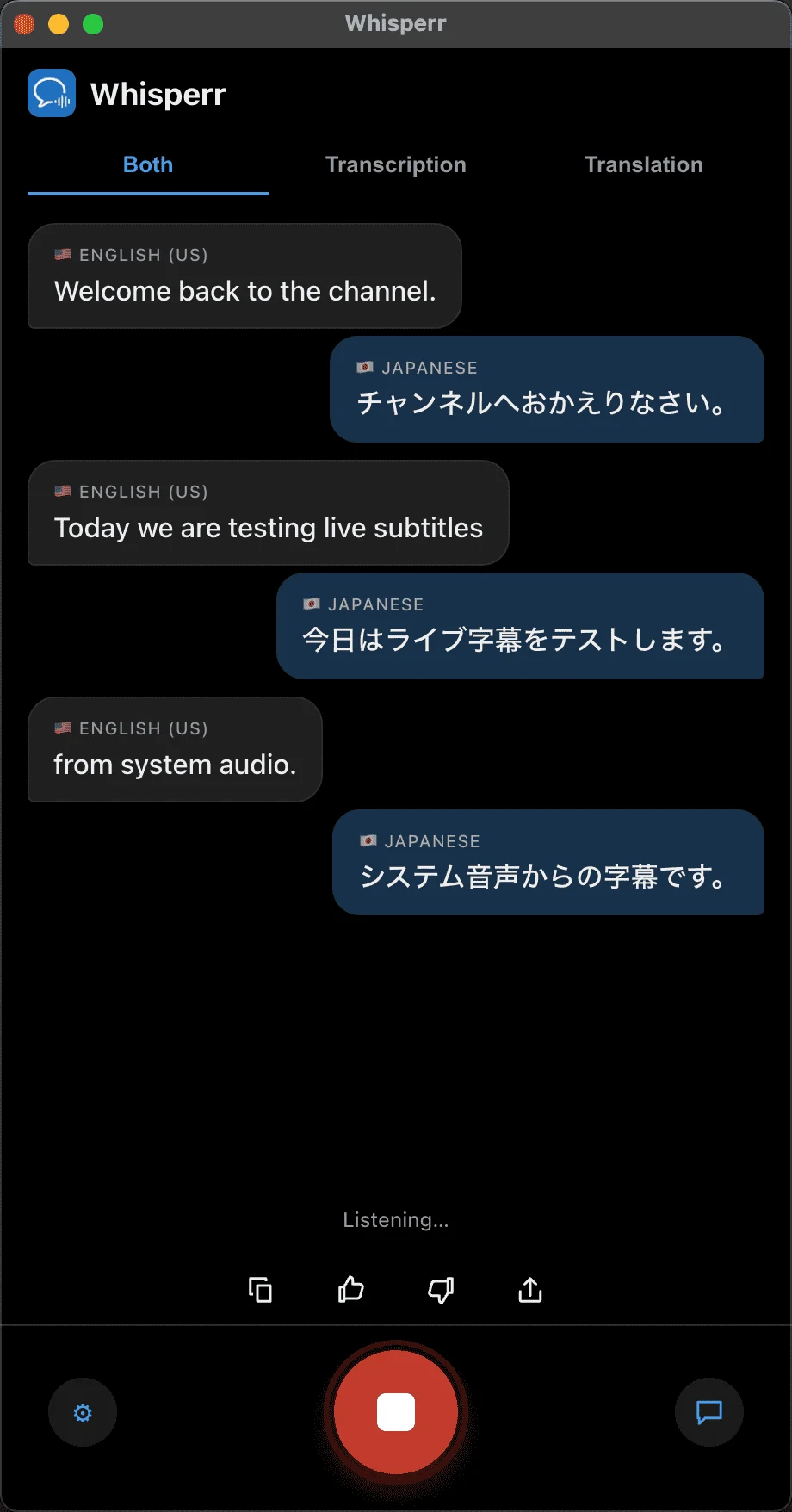
Install the Whisperr desktop app, pick the language of the show under Speaking and your own under Translate to, switch the source to System audio and press record. Play the episode in Spotify, Apple Podcasts or any other player and keep the Whisperr window beside it.
- 2
Web App: capture a browser tab
Open whisperr.co/app in Chrome or Edge, click record, choose Screen Capture and pick the tab playing the episode — a podcast site, Spotify on the web, or YouTube. It has to be a tab, not a window or your entire screen.
- 3
iPhone & Android: floating subtitles
Start a transcription in the Whisperr app, turn on Floating Subtitles, then switch to the app you listen in. The translation floats on top of it while the episode plays. On iPhone this uses Picture in Picture, so keep that turned on in Settings.
- 4
Car, speaker or TV: use the microphone
Playing the episode out loud on another device? Let Whisperr listen through your phone or laptop microphone and follow the translation on screen. Keep it close to the speaker — room noise costs accuracy.
What users say
Whisperr review
“I love how easy Whisperr is to use and how it accurately understands and translates text and speech across different languages. It's so effective that even in scenarios where other tools might fail, Whisperr performs perfectly. Additionally, the ability to select languages for translation directly on a phone is fantastic. This feature helps us translate church services, ensuring everyone understands without missing anything important. The initial setup was straightforward, making it smooth to start using immediately.”
Fast Translations and a Clear, Easy-to-Read Layout
“It translated really fast, and the way the text appears on the screen—with its clear layout—is very easy to read.”
Whisperr Delivers Lightning-Fast, Highly Accurate Real-Time Translation
“The translation is extremely fast and accurate; after comparing several programs, I consider Whisperr to be the fastest and most accurate real-time translation app.”
Top-Notch Speech Recognition and Flashcard-Style Translations for Fast Study
“Whisperr's speech recognition and translation quality are both top-notch, and better than similar tools I've tried so far. Beyond that, as a Japanese learner, I especially like how Whisperr displays each sentence and its translation almost like flashcards, with a text-to-speech button for each one. That setup makes studying feel fast and efficient, and it's easy to review sentence by sentence.”
Simple Real-Time Translation for Work
“I like best about Whisperr is that it feels simple and straightforward to use.”
Awesome
“This is very useful, extremely user-friendly, easy to use, and the recognition capability is very precise, with very fast speed. It should be the most accurate and fastest translation I've used so far.”
Easy to use
“Whisperr is easy to get started and no hassle at all. A great tool to learn languages and for travelling.”
Exceptional outcomes
“I attempted English to Hindi translation and achieved highly accurate results.”
Amazing
“Using it for Spanish to English and it’s amazing!”
Worth hundreds of thousands of yen
“The same performance as other conversation translation apps. Those charge by the minute, but this one is apparently a one-time purchase, so the value for money is outstanding. Compared with about five similar apps, this one is the best on both performance and price. I wonder whether it was made by a Japanese developer??”
Translated from Japanese
Built for long-form listening
Follow the whole episode, not just the gist
Podcasts are long, unscripted and full of people talking over each other. These are the parts that help.
Subtitles over your podcast app
On iPhone and Android the translation floats on top of the app you are listening in, so you never switch back and forth.
Any player on Mac and Windows
The desktop app captures system audio, so Spotify, Apple Podcasts, a browser or any other player works the same way.
Hear it read aloud
Speech Mode reads each translated line through your speaker or headphones, in an automatic, male or female voice, for when you cannot look at a screen.
Each host keeps a voice
In the Web App, the Auto voice follows each speaker’s pitch and timbre, so a two-host show still sounds like two people.
Original and translation together
On desktop and in the Web App, each original line sits with its translation — useful when you are learning the language the show is in.
One-way for a sharper transcript
Set the direction to one-way. Listening for a single language instead of two makes the transcript of it more accurate.
Which setup should I use?
Capturing the audio digitally beats a microphone whenever you have the choice.
| Where you listen | Best method | Audio quality | Runs on |
|---|---|---|---|
| Spotify or Apple Podcasts on a computer | System audio in the desktop app | Best — digital, no room noise | Mac (Apple Silicon), Windows 10 and later |
| A podcast site or YouTube in a browser | Tab capture in the Web App | Best — digital, no room noise | Chrome or Edge on a computer |
| A podcast app on your phone | Floating subtitles if the app allows audio capture, otherwise the microphone | Best with floating subtitles; varies with the microphone | iPhone, iPad, Android |
| A car stereo, smart speaker or TV | Microphone capture | Varies with volume and distance | Any device running Whisperr |
Listen to the translation instead of reading it
Speech Mode reads each translated line aloud through your speaker or headphones while the text stays on screen — for listening while you drive, cook or walk. Choose a male or female voice, or leave it on Auto.
The cleanest setup is two devices: play the episode on one — a car stereo, a smart speaker, a laptop — and let Whisperr listen on your phone with headphones in. Headphones keep the translation out of the microphone, so it never loops back into the transcript.
When Whisperr captures system or tab audio instead, it pauses the capture while its own translation is playing, so that loop cannot start. On a show where the hosts talk continuously, a line can be missed while the translation speaks — use subtitles when you need every word.
Translating a podcast that plays out loud on the same phone? Turn Echo Cancellation off first. It is on by default on iPhone and Android, and it filters out exactly the audio you want translated.
Learning a language with podcasts
Podcasts are one of the best ways to train your ear, and a live transcript makes them usable before you can follow them unaided. Put each original line next to its translation — the Both view in the Mac and Windows apps, or the Web App transcript — and check what you heard against what was said.
Keep the source language set to the language of the show: the original transcript is what you learn from, and the translation is there for when you get lost. In the Web App, Save to cloud keeps every session, so you can reopen an episode’s transcript later on any device you sign in on.
Supported platforms
Whisperr runs on your phone, your computer and in the browser. Here is how each one listens to a podcast.
| Platform | How it hears the podcast | Read the translation aloud | You need |
|---|---|---|---|
| iPhone and iPad | Floating subtitles over other apps (Picture in Picture) if the app allows audio capture, otherwise the microphone | Yes | The Whisperr app from the App Store |
| Android | Floating subtitles over other apps if the app allows audio capture, otherwise the microphone | Yes | The Whisperr app from Google Play |
| Mac | System audio from any app, or the microphone | Yes | The Mac app, on an Apple Silicon Mac |
| Windows | System audio from any app, or the microphone | Yes | The Windows app, on Windows 10 or later |
| Web App | A browser tab, or the microphone | Yes, with a distinct voice for each speaker | Chrome or Edge on a computer; nothing to install |
Never skip a show because of the language
Live translated subtitles for the podcasts you already follow — free to try.
Start Translating FreePodcast translation FAQ
Can I translate a podcast while it plays?+
Does it work with Spotify and Apple Podcasts?+
What is the most accurate way to translate a podcast?+
Can I listen to the translation instead of reading it?+
Can I see the original and the translation together?+
Which languages are supported?+
Does the Mac app need any permissions?+
Is it free?+
Ready to listen in your own language?
Live translated subtitles for any episode, on the devices you already use.
Get Started Free