
Weverse Live
Translate a Weverse Live in Real Time
Follow a Korean or Japanese Weverse Live in your own language. Whisperr listens to the stream audio and shows translated subtitles while the artist is still talking, in 60+ languages on desktop and the web.
- 1
Open a Weverse Live
Go to Weverse in the new tab, open a Live you want to follow and leave it playing.
- 2
Pick your languages
Set Korean (or Japanese) as the spoken language and the language you want to read. Tab capture is already selected.
- 3
Press Record, then pick that tab
Choose the Weverse tab in the picker and tick Share tab audio. Translated subtitles appear here as the artist talks.
- 4
Pop the subtitles out over the video
Opens the subtitles in a small window that stays on top, so you can watch in the other tab and still read along.
When the tab picker opens, tick Share tab audio — without it there is no sound to translate.
On Mac or Windows, choose System audio in the Whisperr desktop app. It captures anything playing on the computer, including the Weverse app.
What a Weverse Live looks like with Whisperr
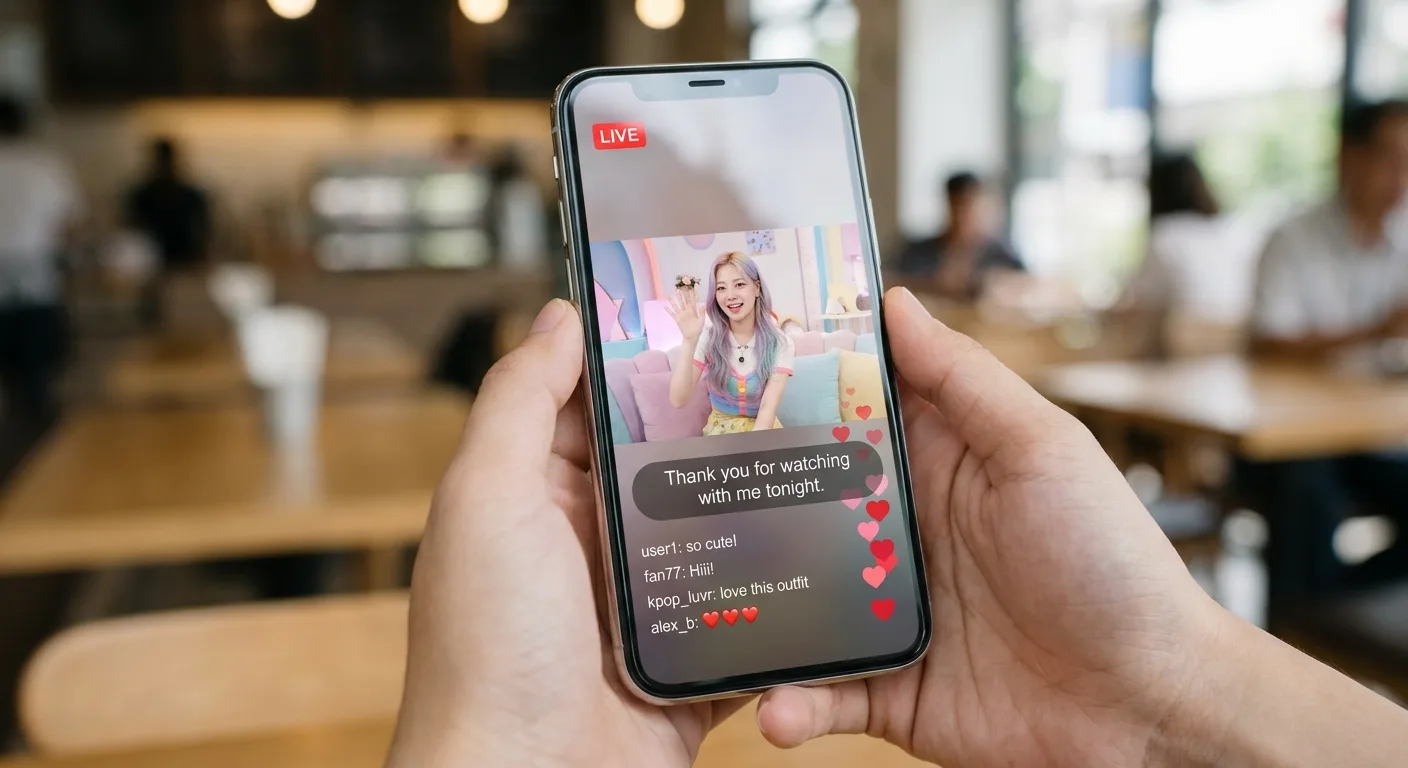
You watch the Live as usual, in the Weverse app or on weverse.io. Whisperr listens to the audio and puts the translated line over the video, so you can follow what the artist is saying while it happens.
On iPhone and Android: Floating Subtitles
Watching the Live in the Weverse app? Captions float over the video.
- 1
Open Whisperr and pick your languages
Set Korean (or Japanese) as the spoken language and the language you want to read.
- 2
Turn on Floating Subtitles
Grant the overlay permission once. The captions become a movable bubble that sits above whatever app is in front.
- 3
Open the Live and press play
Translated subtitles follow the audio on top of the video. Some apps block other apps from capturing their audio; if yours does, use the microphone path below.
On a computer: tab capture, the app, or the microphone
Pick the setup that matches where you watch.
- 1
Chrome or Edge tab capture
Open the Live at weverse.io in a Chrome or Edge tab, start Whisperr on the Web App, and choose that tab with Share tab audio ticked. This gives clean digital audio with no room noise.
- 2
Mac or Windows app: System audio
Watching in another browser or an installed app? Choose System audio in the Whisperr desktop app. It captures whatever your computer is playing.
- 3
Any device: microphone
Play the Live on speaker and let Whisperr listen. Turn Echo Cancellation off in Settings when the sound comes from the same device. Background noise lowers accuracy.
Korean to English: the lead pair
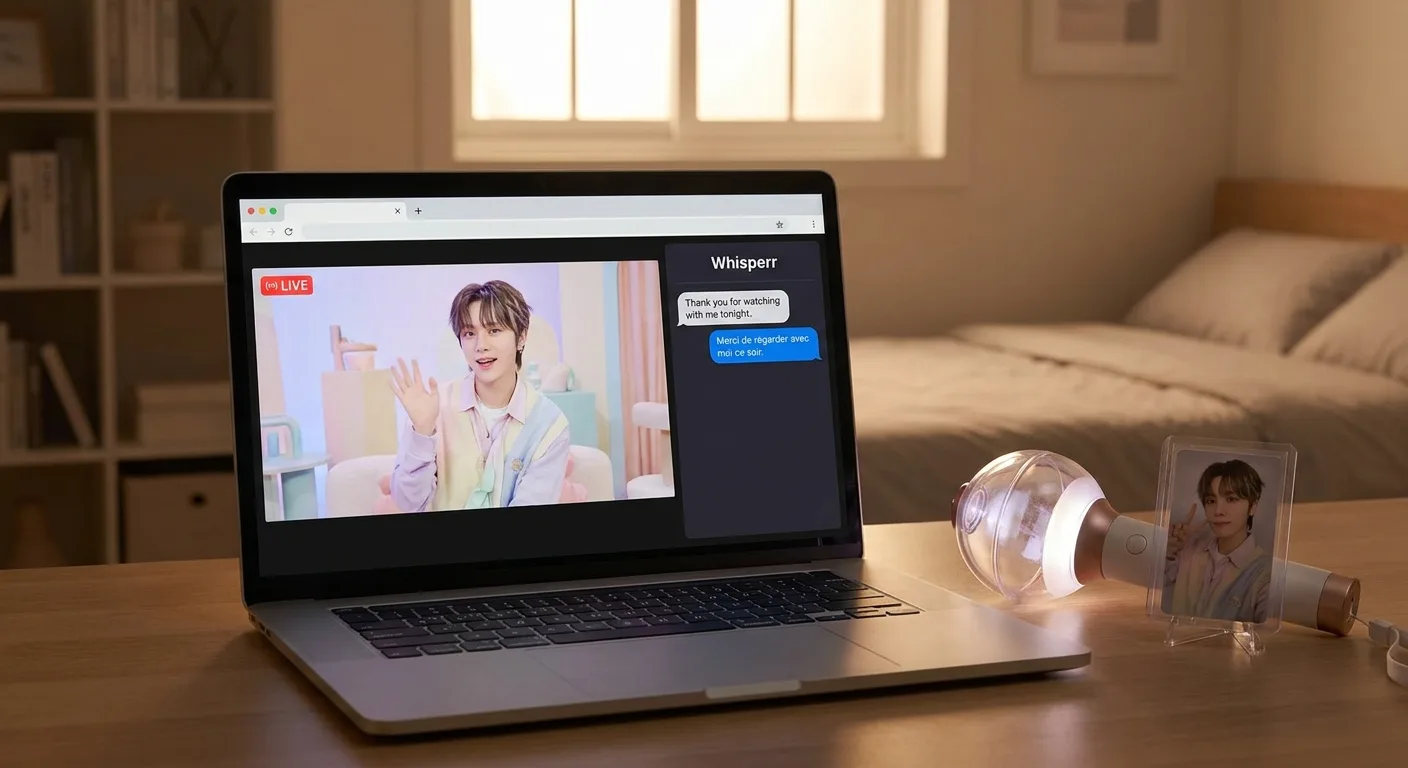
Many Weverse Lives are in Korean, and some are in Japanese or other languages. Set the spoken language to Korean and your reading language to English (or any other language in the list) and Whisperr shows the translation line by line as it goes.
Fast talk, slang and cross-talk are hard for any machine translation, so treat the subtitles as a way to follow along rather than a word-perfect transcript. Whisperr is for personal viewing: it translates the audio you are already watching, and it is not a substitute for official translations.

Watch any live video — translated
YouTube Live, TikTok Live, Twitch, Kick, Discord and more: follow any stream in your own language, with Floating Subtitles on top of what you're watching.
- Turn on Floating Subtitles and the translation floats on top of whatever app you're watching
- Whisperr listens through the microphone — turn Echo Cancellation off to translate audio playing on the same phone
- Works on iPhone and Android
Simple to start
All you need is a phone or a computer.
- 1
Open Whisperr
Use the web app in your browser, or the iPhone, Android, Mac or Windows app.
- 2
Pick your languages and audio
Choose the language being spoken and the one to translate into, then use your microphone — or the audio playing on your computer.
- 3
Just listen, or just speak
Translations appear as people talk. To share them, send the room link or show the QR code.
Whisperr is available everywhere
Use it in your browser, or download the app for your phone or computer.


Keep your transcripts — where you want them
Save transcriptions and translations to come back to later, either in your Whisperr account or only on your own device.
Web app
Save to Cloud
Turn on Save to Cloud and each conversation is stored in your Whisperr account, so you can reopen it from Recent Conversations on any device you sign in on. Turn it off and nothing is kept.
iPhone & Android
Stored on your phone
Transcripts are saved locally on your phone and never uploaded to the cloud. Delete any conversation whenever you want.
Mac & Windows
Stored on your computer
The desktop app keeps your conversation history on your computer, without sending it to the cloud.
Privacy first
Whisperr translates your conversations without keeping them.
Audio is never stored
Your audio is processed in real time to produce the transcript and translation, then discarded.
Nothing saved unless you choose
Transcripts and translations are not stored on our servers unless you turn on Save to Cloud.
Never used to train AI
Your audio, transcripts and translations are never used to train AI models, and our service providers can't use them either.
Encrypted in transit
Everything between your device and Whisperr is encrypted with TLS 1.2 or higher.
Supported languages
Languages
62 languages
Afrikaans · Albanian · Arabic · Azerbaijani · Basque · Belarusian · Bangla · Bosnian · Bulgarian · Catalan · Simplified Chinese · Traditional Chinese · Cantonese · Croatian · Czech · Danish · Dutch · English · Estonian · Finnish · French · Galician · German · Greek · Gujarati · Hebrew · Hindi · Hungarian · Indonesian · Italian · Japanese · Kannada · Kazakh · Korean · Latvian · Lithuanian · Macedonian · Malay · Malayalam · Marathi · Norwegian · Persian · Polish · Portuguese · Punjabi · Romanian · Russian · Serbian · Slovak · Slovenian · Spanish · Swahili · Swedish · Tagalog · Tamil · Telugu · Thai · Turkish · Ukrainian · Urdu · Vietnamese · Welsh
Speak in any of them, translate into any of them
On the web app. The Mac and Windows apps currently offer 61 (all except Cantonese), and the Android app 48.
What users say
Whisperr review
“I love how easy Whisperr is to use and how it accurately understands and translates text and speech across different languages. It's so effective that even in scenarios where other tools might fail, Whisperr performs perfectly. Additionally, the ability to select languages for translation directly on a phone is fantastic. This feature helps us translate church services, ensuring everyone understands without missing anything important. The initial setup was straightforward, making it smooth to start using immediately.”
Fast Translations and a Clear, Easy-to-Read Layout
“It translated really fast, and the way the text appears on the screen—with its clear layout—is very easy to read.”
Whisperr Delivers Lightning-Fast, Highly Accurate Real-Time Translation
“The translation is extremely fast and accurate; after comparing several programs, I consider Whisperr to be the fastest and most accurate real-time translation app.”
Top-Notch Speech Recognition and Flashcard-Style Translations for Fast Study
“Whisperr's speech recognition and translation quality are both top-notch, and better than similar tools I've tried so far. Beyond that, as a Japanese learner, I especially like how Whisperr displays each sentence and its translation almost like flashcards, with a text-to-speech button for each one. That setup makes studying feel fast and efficient, and it's easy to review sentence by sentence.”
Simple Real-Time Translation for Work
“I like best about Whisperr is that it feels simple and straightforward to use.”
Awesome
“This is very useful, extremely user-friendly, easy to use, and the recognition capability is very precise, with very fast speed. It should be the most accurate and fastest translation I've used so far.”
Built for live fandom
Follow a Weverse Live as it happens
Weverse says the subtitles on artists’ live videos are machine-translated and cannot fully capture the nuance of the original Korean. Whisperr works from the spoken audio on your side, so you can follow any Live in the language you choose.
Works on any Live
Whisperr translates what you hear, so it does not depend on which subtitle languages a particular Live offers.
Subtitles beside the video
Split the screen so translated text sits next to the Live, or pop the subtitles out into a floating window.
Korean to English, and more
Korean to English is the lead pair. Japanese Lives work too, and you can read in 60+ languages on desktop and the web.
Live, not after the fact
Text appears while the artist is still speaking, so you can react along with everyone else watching.
Floating subtitles on iPhone and Android
Watching in the Weverse app? Floating Subtitles overlay translated captions where the app allows its audio to be captured.
Microphone fallback
If an app blocks audio capture, play the Live on speaker and let Whisperr listen through the microphone.
Understand the next Weverse Live you open
Add real-time translated subtitles to any Live. Free to try.
Start Translating FreeWeverse Live translation FAQ
Can I translate a Weverse Live in real time?+
Does it work on replays and VODs?+
Does the artist or Weverse need to enable subtitles?+
Is it allowed?+
Can I use it on my phone?+
Is it free?+
Ready to follow any Weverse Live?
Real-time translated subtitles, whatever language the artist speaks.
Get Started Free