
Remote and offshore teams
Run Your Remote and Offshore Team in Every Language
Stand-ups, code reviews and one-to-ones work better when everyone can speak freely. Each person talks in their own language and hears the others translated, live.
- 1
Pick the languages
Choose the language you speak and the one you need.
- 2
Press Record and speak
Say a sentence or two, the way you would on the call.
- 3
Read the translation live
Text appears as the words are spoken. The steps below show how to do this on a real call.
Talk to your team on a translated call
Nobody needs Zoom, Teams or Meet. Each person talks in their own language and hears the others translated. Calls is in Beta and takes up to 8 people.
- 1
Start a call in the Web App
Go to whisperr.co/app, click Start a call, then enter your name and the language you speak.
- 2
Send the link
Teammates open the link in a browser, enter a name and a language, and join. They need no app and no account.
- 3
Talk, and hear your own language
Set Voice to your language only and you hear just the translated voice, or choose Both to hear the original too. The live transcript appears in each person’s language.

Bring the translation into your stand-up on Zoom, Teams or Meet
For a call already on Zoom, Teams or Google Meet. Meeting Bot is not on the free plan.
- 1
Launch the bot
On whisperr.co/app, open Meeting Bot and start a new one. Paste the meeting link, pick the two languages spoken most and click Launch.
- 2
Let the bot in
The bot joins as a participant, so tell the team it is there. The host may need to admit it from the waiting room.
- 3
Share the Room link
Copy the Room link into the meeting chat or show its QR code. Everyone opens it in a browser, with no app and no sign-up.
- 4
Read it or hear it
Each person chooses their language and reads along, or turns on Speech mode to hear the translation spoken.
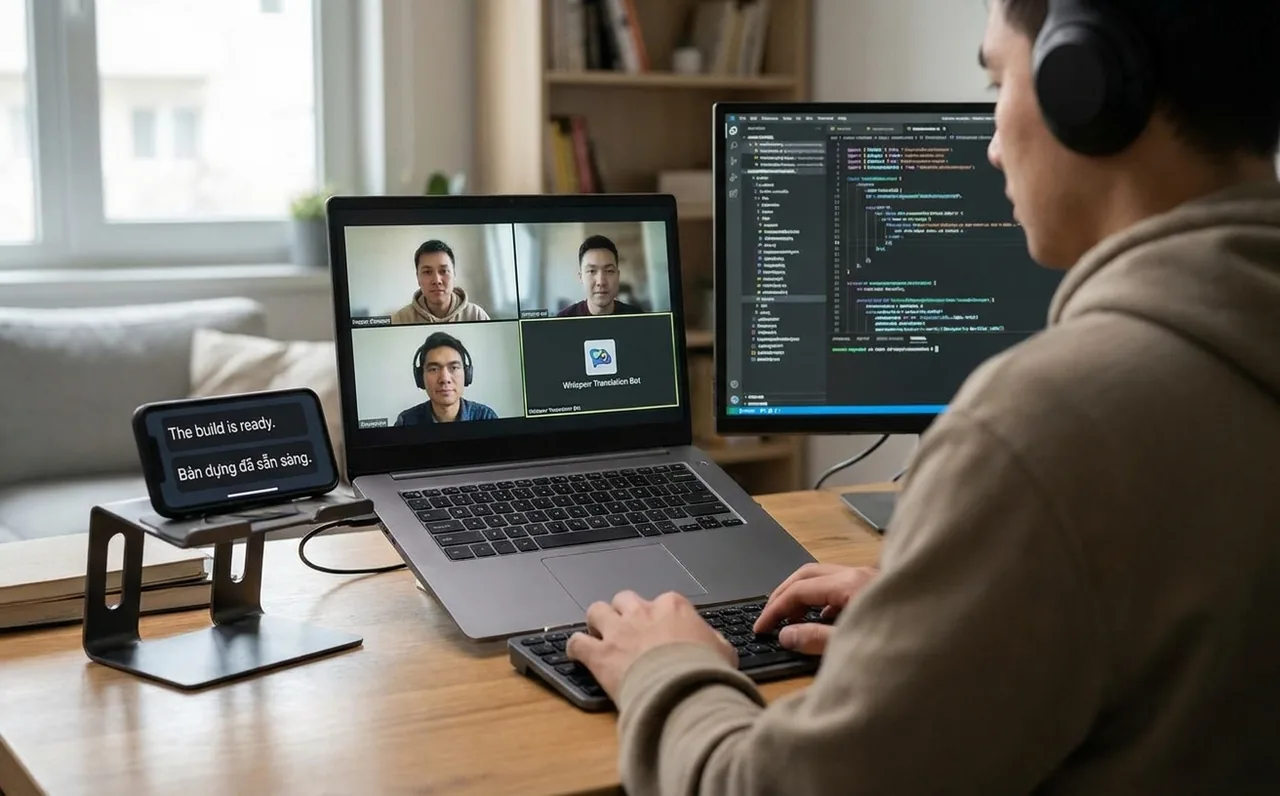
Have each person listen on their desktop app
Each person who wants it runs Whisperr on their own Mac or Windows computer, beside any call app.
- 1
Join the call as usual
Use Zoom, Teams, Slack huddles or any other meeting app, with a screen share if you need one.
- 2
Open the Whisperr desktop app and choose System audio
System audio lets Whisperr hear what your computer plays. Pick the language being spoken and the one you want.
- 3
Press Record, then turn on Speak Aloud
Whisperr shows each translated line on screen and speaks it. Use headphones. Choose Mic + audio capture before you start to include your own voice in the transcript.
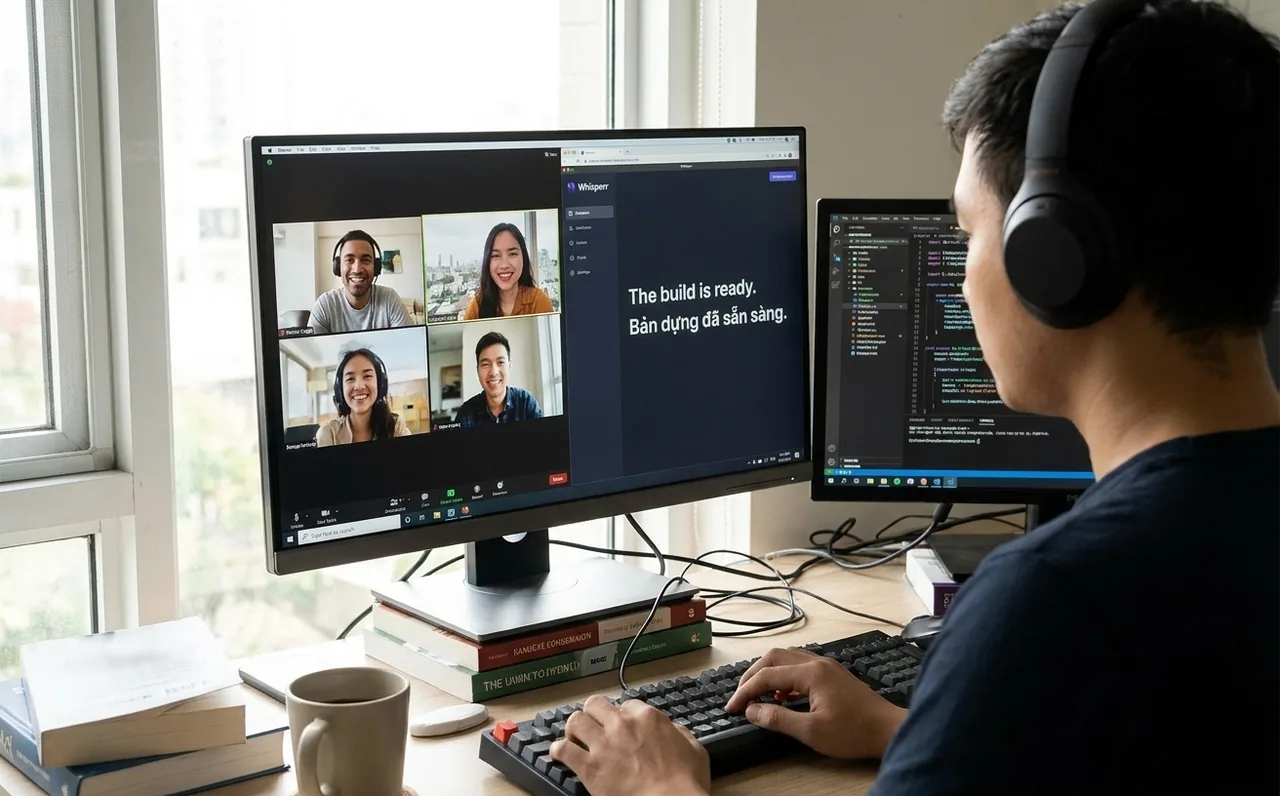
Catch up on a recorded meeting
Missed the meeting in another time zone? Upload the recording and read it in your language.
- 1
Open Upload a file in the Web App
Go to whisperr.co/app, choose Upload a file in the sidebar and pick the audio or video file.
- 2
Pick the languages and click Transcribe
Choose the languages spoken in the file and the one you want to read. A file can be up to 299 minutes and 500 MB.
- 3
Open the transcript
Every line sits next to its translation, saved in your account. Each month includes 20 free minutes, or 10 hours on a subscription.

Use one subscription on your phone, browser and computer
Each teammate’s plan works on their computer, their phone and the Web App.
- 1
Subscribe once, wherever you like
Subscribe in the iPhone or Android app, or on the Web App. You do not need to buy it again on each device.
- 2
Sign in with the same account
Use the same Whisperr account on iPhone, iPad, Android, Mac, Windows and the Web App, and your plan comes with you.
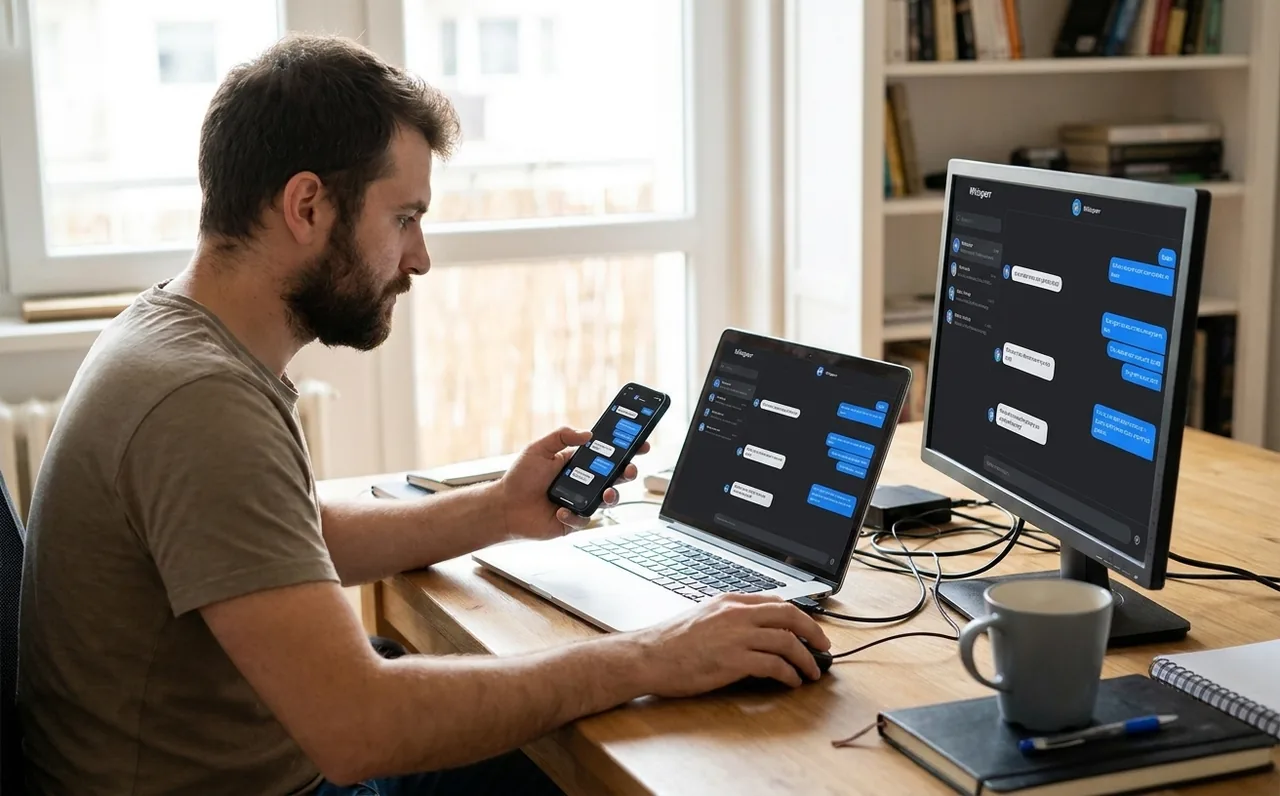
Where it fits
Team meetings across languages
Pick the setup that matches the meeting.
The daily stand-up
Send the bot to the recurring meeting and pin the Room link in your team chat.
A one-to-one
Start a Whisperr Call and talk, each in your own language.
A code review or sprint demo
Each developer runs the desktop app beside the screen share.
Simple to start
All you need is a phone or a computer.
- 1
Open Whisperr
Use the web app in your browser, or the iPhone, Android, Mac or Windows app.
- 2
Pick your languages and audio
Choose the language being spoken and the one to translate into, then use your microphone — or the audio playing on your computer.
- 3
Just listen, or just speak
Translations appear as people talk. To share them, send the room link or show the QR code.
Whisperr is available everywhere
Use it in your browser, or download the app for your phone or computer.


Privacy first
Whisperr translates your conversations without keeping them.
Audio is never stored
Your audio is processed in real time to produce the transcript and translation, then discarded.
Nothing saved unless you choose
Transcripts and translations are not stored on our servers unless you turn on Save to Cloud.
Never used to train AI
Your audio, transcripts and translations are never used to train AI models, and our service providers can't use them either.
Encrypted in transit
Everything between your device and Whisperr is encrypted with TLS 1.2 or higher.
Supported languages
Languages
62 languages
Afrikaans · Albanian · Arabic · Azerbaijani · Basque · Belarusian · Bangla · Bosnian · Bulgarian · Catalan · Simplified Chinese · Traditional Chinese · Cantonese · Croatian · Czech · Danish · Dutch · English · Estonian · Finnish · French · Galician · German · Greek · Gujarati · Hebrew · Hindi · Hungarian · Indonesian · Italian · Japanese · Kannada · Kazakh · Korean · Latvian · Lithuanian · Macedonian · Malay · Malayalam · Marathi · Norwegian · Persian · Polish · Portuguese · Punjabi · Romanian · Russian · Serbian · Slovak · Slovenian · Spanish · Swahili · Swedish · Tagalog · Tamil · Telugu · Thai · Turkish · Ukrainian · Urdu · Vietnamese · Welsh
Speak in any of them, translate into any of them
On the web app. The Mac and Windows apps currently offer 61 (all except Cantonese), and the Android app 48.
What users say
Whisperr review
“I love how easy Whisperr is to use and how it accurately understands and translates text and speech across different languages. It's so effective that even in scenarios where other tools might fail, Whisperr performs perfectly. Additionally, the ability to select languages for translation directly on a phone is fantastic. This feature helps us translate church services, ensuring everyone understands without missing anything important. The initial setup was straightforward, making it smooth to start using immediately.”
Fast Translations and a Clear, Easy-to-Read Layout
“It translated really fast, and the way the text appears on the screen—with its clear layout—is very easy to read.”
Whisperr Delivers Lightning-Fast, Highly Accurate Real-Time Translation
“The translation is extremely fast and accurate; after comparing several programs, I consider Whisperr to be the fastest and most accurate real-time translation app.”
Top-Notch Speech Recognition and Flashcard-Style Translations for Fast Study
“Whisperr's speech recognition and translation quality are both top-notch, and better than similar tools I've tried so far. Beyond that, as a Japanese learner, I especially like how Whisperr displays each sentence and its translation almost like flashcards, with a text-to-speech button for each one. That setup makes studying feel fast and efficient, and it's easy to review sentence by sentence.”
Simple Real-Time Translation for Work
“I like best about Whisperr is that it feels simple and straightforward to use.”
Awesome
“This is very useful, extremely user-friendly, easy to use, and the recognition capability is very precise, with very fast speed. It should be the most accurate and fastest translation I've used so far.”
Built for distributed teams
Let people speak the language they think in
Your team keeps its meeting tools. Whisperr adds the translation.
Nothing for them to install
Send a link. The other side joins or reads along in a browser, with no app and no account.
Everyone gets their own language
Each person picks a language, then reads the transcript or hears the translation spoken.
Works with your meetings
Use the bot in Zoom, Teams or Google Meet, or run the desktop app beside any meeting.
Keep a transcript
Save the text so anyone can check a decision or a task afterwards.
Many languages, one flat price
The Web App and desktop app offer 60+ languages. Paid plans are a flat fee with unlimited use.
One subscription, every device
Sign in with the same Whisperr account on your phone, your computer and the Web App. You only pay once.
Try it in your next stand-up
Start a translated call in your browser. Free to try.
Start Translating Free